We use cookies to improve the services we offer you. By continuing to browse this site, you consent to keep them in accordance with our Privacy Policy.
×We use cookies to improve the services we offer you. By continuing to browse this site, you consent to keep them in accordance with our Privacy Policy.
×
 95
95
 9 min
9 min
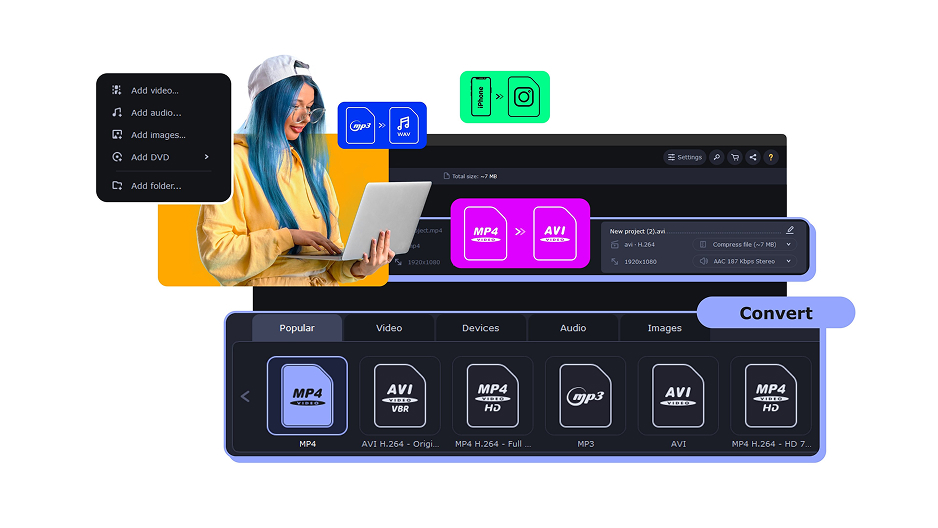
If you need to convert to MP4 quickly and for free, VLC’s hidden Convert/Save tool handles it on Windows, Mac, and Linux without any extra software installation. This guide covers the complete VLC workflow to convert your files to MP4.
VLC’s Convert/Save function is buried in the Media menu, but once you know where to find it, converting to MP4 is a four-step process. Below is the exact workflow tested on VLC 3.x on Windows 10 and macOS 14.
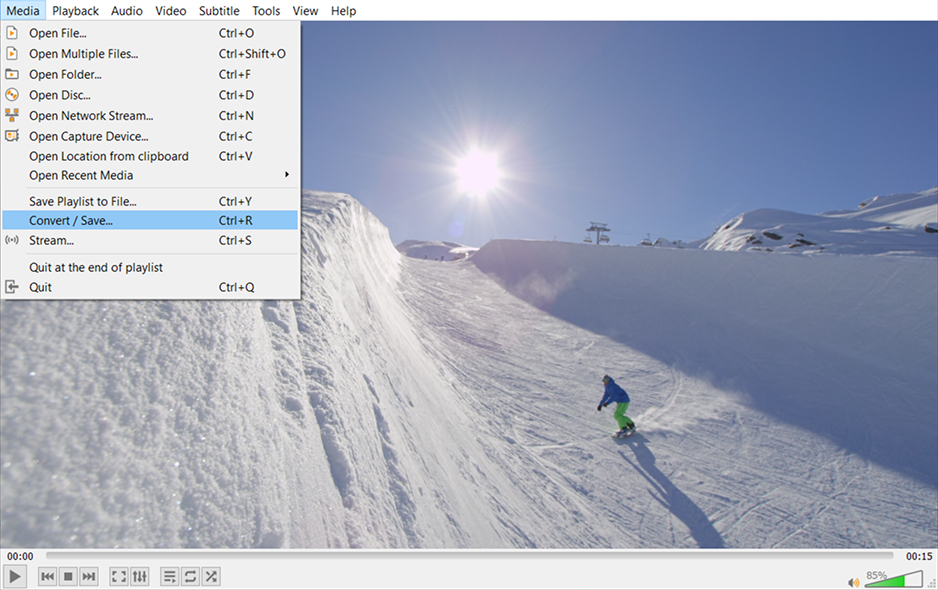
Launch VLC Media Player on your PC or Mac. In the top menu bar, click Media, then scroll down and select Convert/Save (keyboard shortcut: Ctrl + R on Windows, or Cmd + R on Mac). This opens the Open Media dialog where you load the file you want to convert.
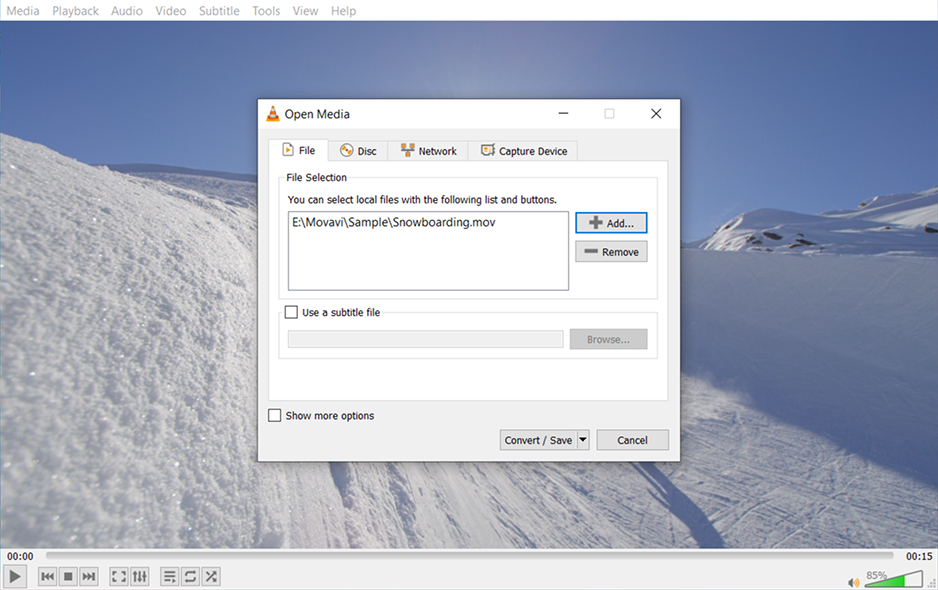
In the Open Media popup, stay on the File tab and click the +Add button. Navigate to the video file you want to convert to MP4 and click Open. You can add multiple files for batch conversion. Once all files appear in the list, click the Convert/Save button at the bottom of the dialog.
VLC’s video converter accepts a wide range of source formats, making it a versatile tool for format conversion:
| Input formats – VLC Media Player |
| MP4, M4V, M4A (MPEG-4) |
| MKV (Matroska Video) |
| AVI (Audio Video Interleave) |
| MOV (Apple QuickTime) |
| WMV / WMA (Windows Media) |
| FLV / F4V (Flash Video) |
| MPEG-1, MPEG-2, MPEG-TS |
| 3GP / 3G2 (Mobile video) |
| WebM / VP8 / VP9 |
| OGG / OGV / OGA |
| VOB (DVD Video) |
| HEVC / H.265 (partial support) |
| MP3, AAC, FLAC, WAV, OGG (audio formats) |
| FLAC, Opus, Vorbis |
In the Convert window that opens, find the Profile dropdown under Settings. Click it and select Video – H.264 + MP3 (MP4) from the list. This is the recommended VLC convert to MP4 preset – it uses the H.264 video codec with MP3 audio, which produces MP4 files compatible with virtually every device, platform, and media player. If you need H.265 for smaller file sizes, select the HEVC preset instead.
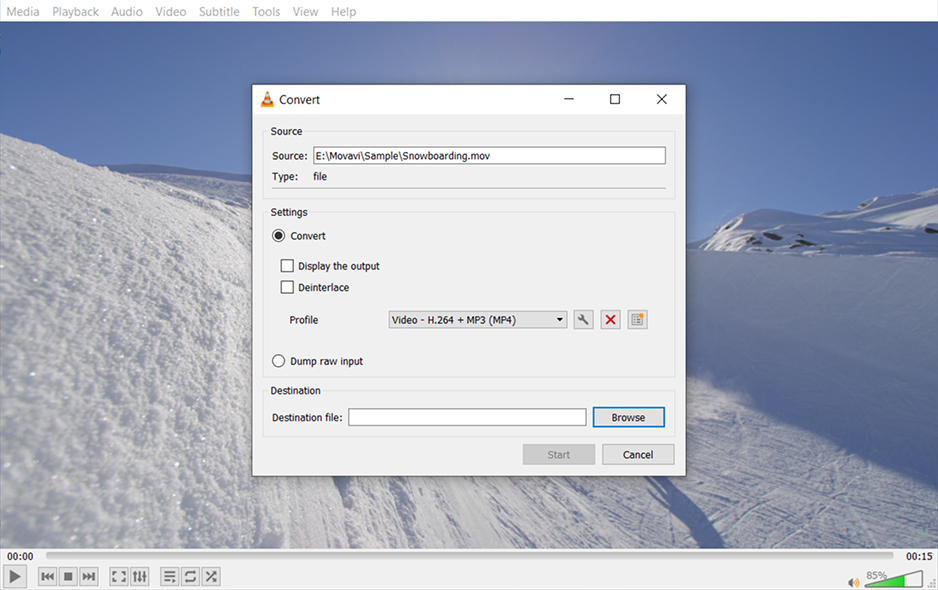
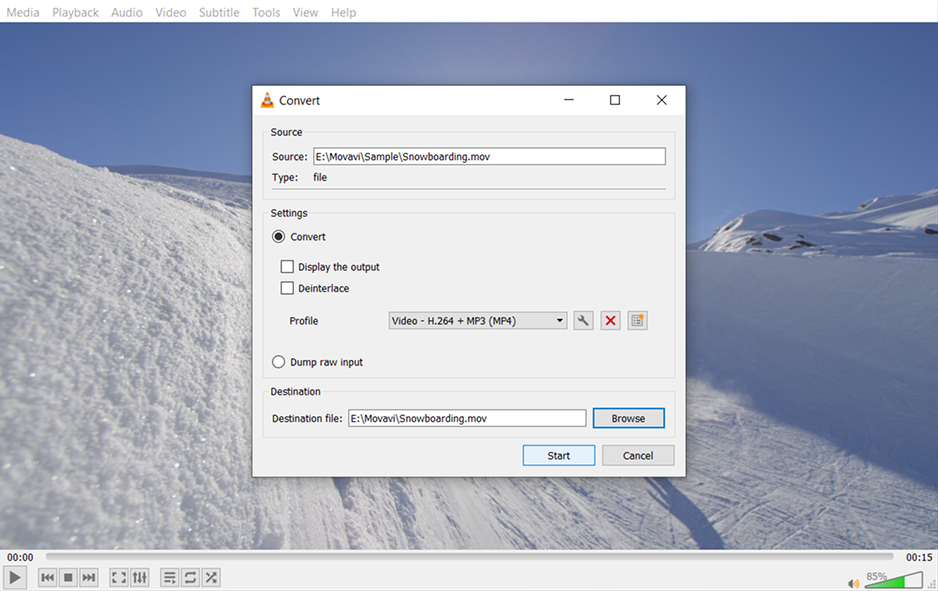
At the bottom of the Convert window, click Browse under the Destination section. Choose the folder where you want to save the converted MP4 file and name it. For batch conversions, check the Append ‘-converted’ to filename checkbox to avoid overwriting originals. Click Start. Watch the blue progress bar in VLC’s main window – the VLC converter is working. For a one-hour 1080p file, expect roughly 30–40 minutes of processing time.
The built-in VLC video converter can save to the following output formats via its Profile presets:
| Output formats – VLC Media Player |
| MP4 / M4V (H.264 + MP3 or AAC) – recommended |
| MPEG-TS (MPEG Transport Stream) |
| OGG / OGV (Theora + Vorbis) |
| WebM (VP80 + Vorbis) |
| ASF / WMV (Windows Media) |
| MP3 (audio only) |
| FLAC (lossless audio) |
| WAV (PCM audio) |
| OGA (Ogg Audio) |
| MPEG Audio (MP1, MP2, MP3) |
Note: VLC’s built-in converter has limited output options and no batch conversion for multiple formats. It also lacks GPU acceleration, making it significantly slower than dedicated software for large or high-resolution files.
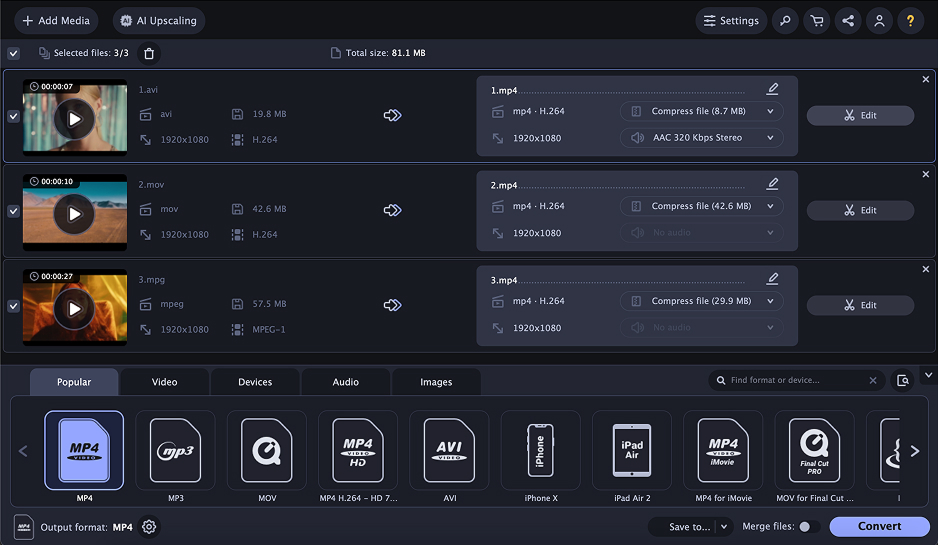
Movavi Video Converter is a dedicated VLC converter alternative for Windows and Mac that converts video and audio files to MP4 and 180+ other formats at up to 79× faster than VLC, using GPU hardware acceleration. It supports batch conversion of hundreds of files in a single pass – something VLC’s built-in tool can’t match.
Unlike VLC, Movavi is purpose-built for media conversion. You get a clean one-screen workflow, a target file-size slider, AI upscaling, a built-in trimmer, and device presets for iPhone, Android, and major streaming platforms – all in a free-to-download app with a 7-day full-access trial and no watermarks on the paid full version.
Exclusive discount
Get a special discount on Movavi Video Converter! Use our promo code at checkout to save on your license. Check current promo codes →
⬇ Download for Windows | ⬇ Download for Mac
The steps below work on both Windows 10/11 and macOS. Movavi Video Converter is faster, cleaner, and more reliable than using VLC for converting to MP4 – especially for batch jobs and large files.
Go to movavi.com/video-converter and download the installation file for Windows or Mac. Run the installer and follow the on-screen prompts – the software opens automatically when installation is done. The 7-day trial gives full access to every feature, including batch conversion, GPU acceleration, and all 180+ output formats.
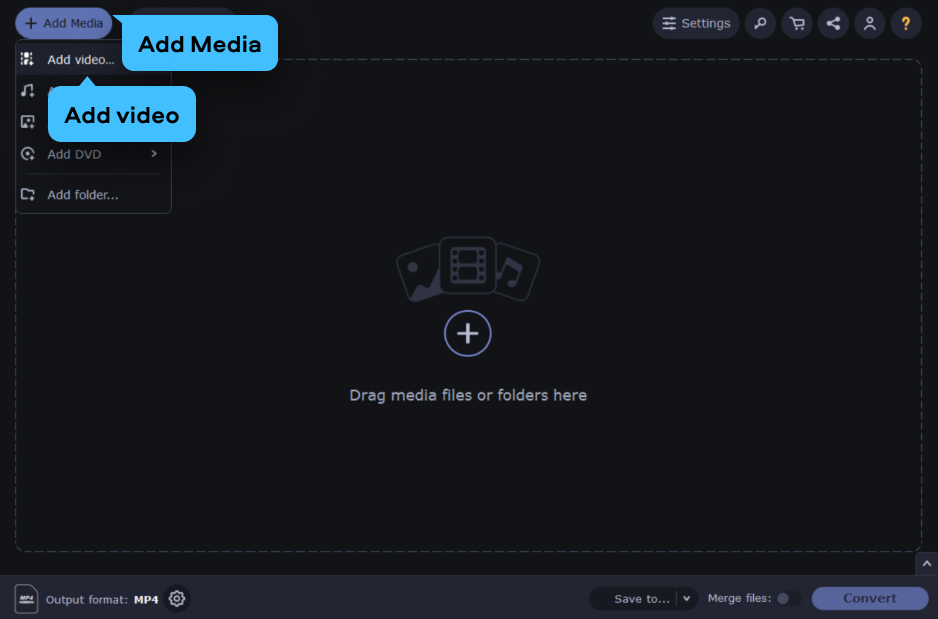
Click Add Media → Add Video in the upper-left corner and select the video files you want to convert. You can add multiple files at once for batch conversion – Movavi processes the entire queue in a single pass. Drag-and-drop directly into the window also works for any video file type.
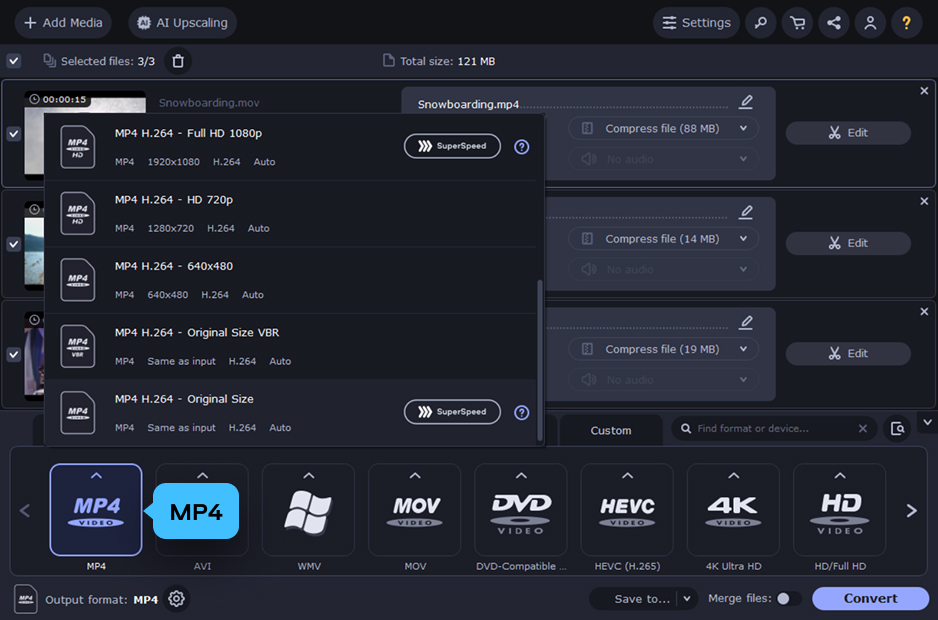
Click the Video tab at the bottom of the screen and select the MP4 category. Choose your preferred preset – MP4 H.264 Original Size for best quality, or MP4 H.265 for up to 50% smaller files at equal quality. For social media uploads, use the platform presets (YouTube, Instagram, TikTok) in the Devices tab – the right resolution and codec are applied automatically.
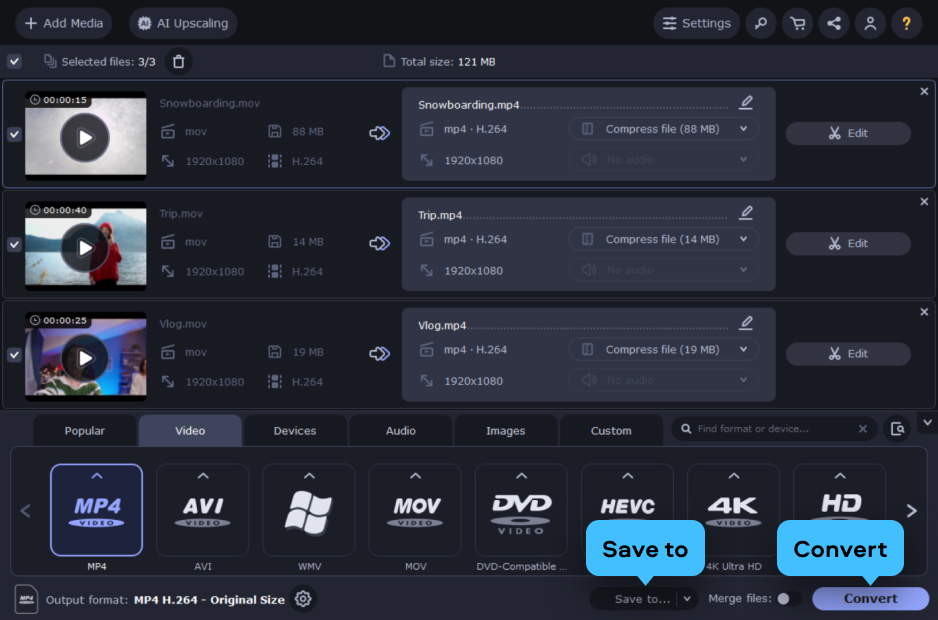
Click Save to at the bottom and pick the folder where the converted MP4 files should land. Click Convert. Movavi uses GPU-accelerated SuperSpeed encoding to process the files. A one-hour 1080p video typically converts in 3–5 minutes – versus 30–40 minutes in VLC. The output folder opens automatically when the conversion is complete.
VLC convert to MP4 works well for a quick, occasional conversion – it’s free, cross-platform, and requires no extra software. The process takes four steps and handles most common formats. Just be prepared for slow processing speeds and the occasional corrupted output file on complex media types.
For anything beyond a single file – batch jobs, large 4K clips, or workflows where speed and reliability matter – Movavi Video Converter is a significantly better tool. It converts faster, handles more formats, and produces cleaner output. Download the free trial, try it on your actual files, and save on your license with a promo code.
Open VLC Media Player, go to Media → Convert/Save, click +Add to load your video file, then click Convert/Save. In the Convert window, select Video – H.264 + MP3 (MP4) from the Profile dropdown, set an output folder via Browse, and click Start. VLC converts to MP4 and saves the file when the progress bar completes. This is the standard VLC convert to MP4 workflow on both Windows and Mac.
The most common reasons VLC fails to convert to MP4 are:
Yes – VLC Media Player has a built-in VLC video converter accessible via Media → Convert/Save. It can convert between most common formats including MP4, MKV, AVI, WebM, and OGG. The tool is completely free and works on Windows, Mac, and Linux. Its main limitations are slow processing speed (no GPU acceleration), one-at-a-time conversion (no true batch mode), and a limited range of output profiles. For casual, occasional use it’s a capable free app; for regular or batch conversions, a dedicated software like Movavi produces better results faster.
The fastest way to convert to MP4 on a PC or Mac is with Movavi Video Converter: