We use cookies to improve the services we offer you. By continuing to browse this site, you consent to keep them in accordance with our Privacy Policy.
×We use cookies to improve the services we offer you. By continuing to browse this site, you consent to keep them in accordance with our Privacy Policy.
×
 1
1
 10 min
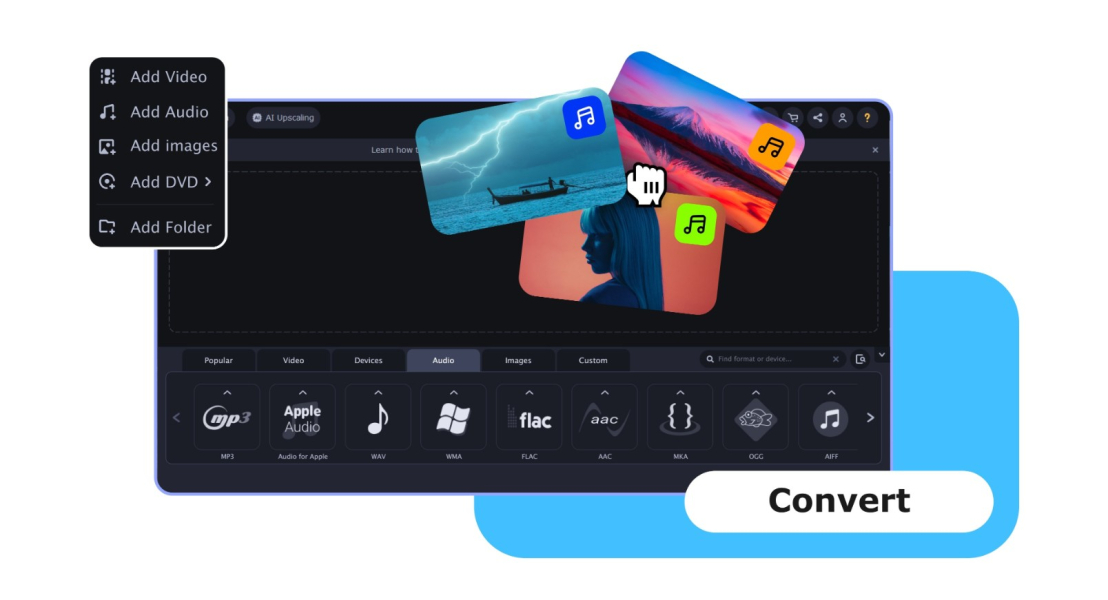
Want to extract audio from a video? VLC media player makes it easy. This free, open-source app for Windows, Mac, and Linux supports a wide range of video formats and lets you export audio as MP3 or other formats without installing anything extra. Read on to learn how to extract sound from a video using VLC in just a few clicks.
VLC is a popular free app that most people use for playback but it also includes a powerful conversion feature that lets you rip audio from video files. Here’s how to save audio from a video using VLC on your desktop.
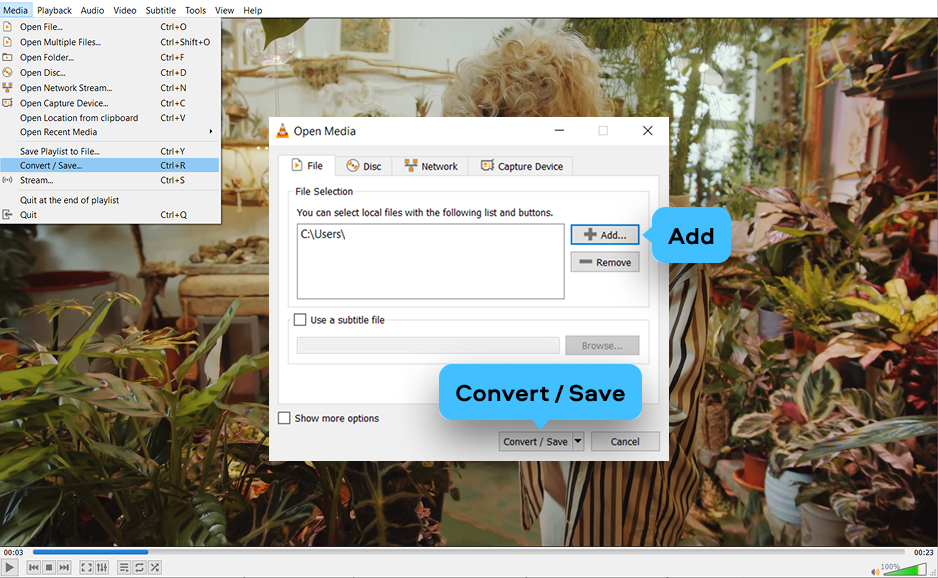
Launch VLC on your computer. In the top menu bar, click Media, then select Convert / Save from the dropdown. This opens the Open Media dialog, which is where you’ll load the source MP4 file or any other video you want to process.
Click the Add button to browse your computer and select the video file you’d like to extract audio from. Once the file appears in the list, click the Convert / Save button at the bottom of the window to proceed.
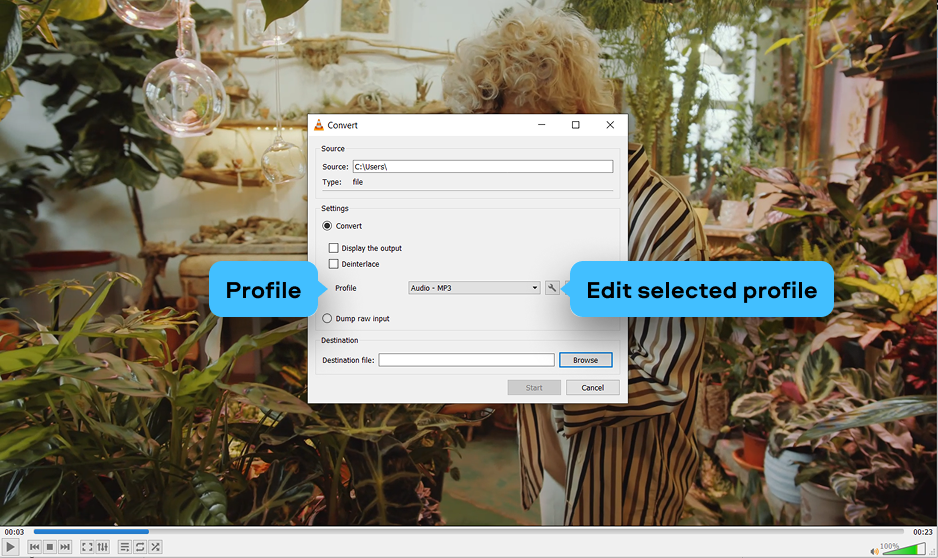
In the Convert dialog that opens, you’ll see a Profile dropdown list. This is where you choose what format the output file will be in. To extract audio only, you need to select an audio-only profile such as Audio – MP3 or Audio – FLAC.
If none of the default profiles fits your needs, click the Edit selected profile button (the wrench icon) to create a custom audio profile. Make sure the Encapsulation tab is set to a container that supports audio-only output, and select your preferred audio codec on the Audio codec tab. Uncheck the Video codec option to ensure no video stream is included in the output.
VLC is one of the most versatile free media players available. It can open virtually any video file, which means you can extract audio from a wide range of source formats:
This broad compatibility makes VLC an excellent tool for separating audio from almost any video source.
Back in the Convert dialog, click the Browse button next to the Destination file field. Choose a folder where you want to save the extracted audio and type in a filename with the correct extension – for example, mysong.mp3 if you’re converting MP4 to MP3.
Once you’re happy with the settings, click Start. VLC will process the video and save just the audio track to the specified location. Depending on the length of your video and the speed of your computer, this may take a few seconds to several minutes. When it’s done, navigate to the output folder and you’ll find your extracted audio file ready to use.
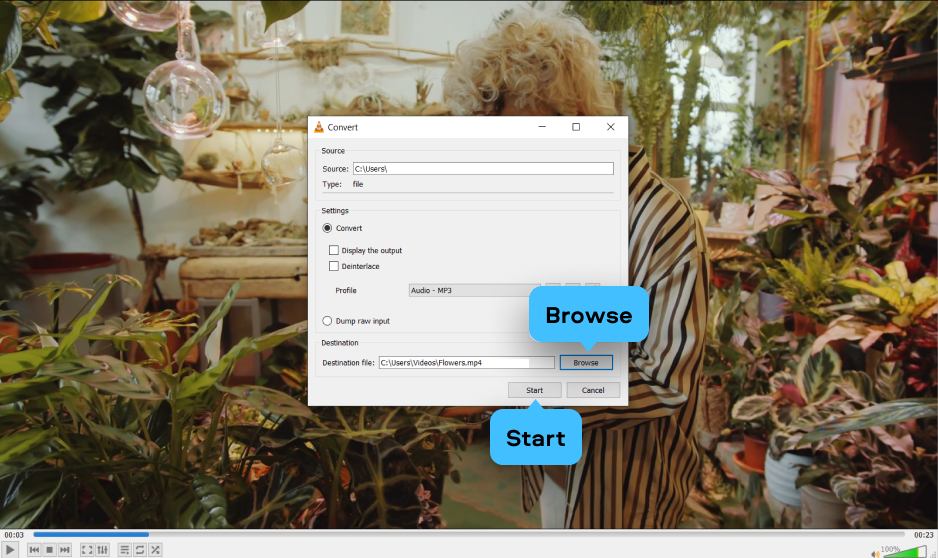
When using VLC to export audio, the output format depends on the profile you select or configure. The most commonly used audio output formats include:
For most users who want to save audio from a video for everyday listening, MP3 is the recommended output format – it’s small, compatible everywhere, and easy to share.
While VLC is a capable free tool, it wasn’t primarily designed as an audio extractor, so the process involves navigating through conversion menus. Movavi Video Converter is dedicated software built specifically for format conversion tasks, including pulling audio from video files quickly and cleanly. It supports a wide range of input and output formats, offers a simple drag-and-drop interface, and is available as both a paid app and a free trial version.
Whether you need to rip audio from MP4 to MP3, extract a soundtrack for a video project, or convert entire folders of videos to audio, Movavi Video Converter makes the process intuitive. It’s available for Windows and Mac, and processes files much faster than VLC thanks to hardware acceleration.
| 🎉 Special offer: Use promo code MOVAVI20 for 20% off Movavi Video Converter! [ ⬇ Download for Windows ] [ ⬇ Download for Mac ] |
Download and install Movavi Video Converter from the official website. Launch the app after installation. On the main screen, click the Add Media button (or simply drag and drop your video file into the window). You can add multiple files at once if you need to batch extract audio from several videos.
Movavi Video Converter supports a huge variety of input formats, so you can load MP4, MKV, MOV, AVI, FLV, WMV, WebM, and many more without any issues. This makes it a versatile free-to-try software for any audio extraction task.
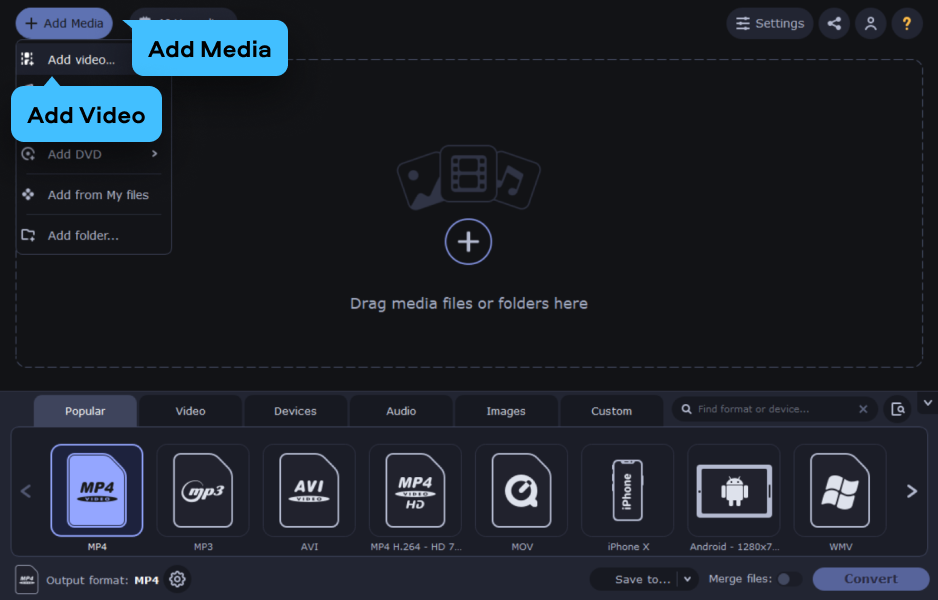
At the bottom of the program window, click on the Audio tab in the format selector. You’ll see all available audio output formats listed – MP3, AAC, FLAC, Ogg, WAV, and others. Click MP3 (or whichever format you prefer) to select it as the output.
You can also adjust the quality settings: choose a bitrate (e.g. 128 kbps, 192 kbps, 320 kbps) depending on your needs. Higher bitrates produce better audio quality but larger file sizes. For podcasts and voiceovers, 128 kbps is usually fine; for music, 320 kbps is recommended.
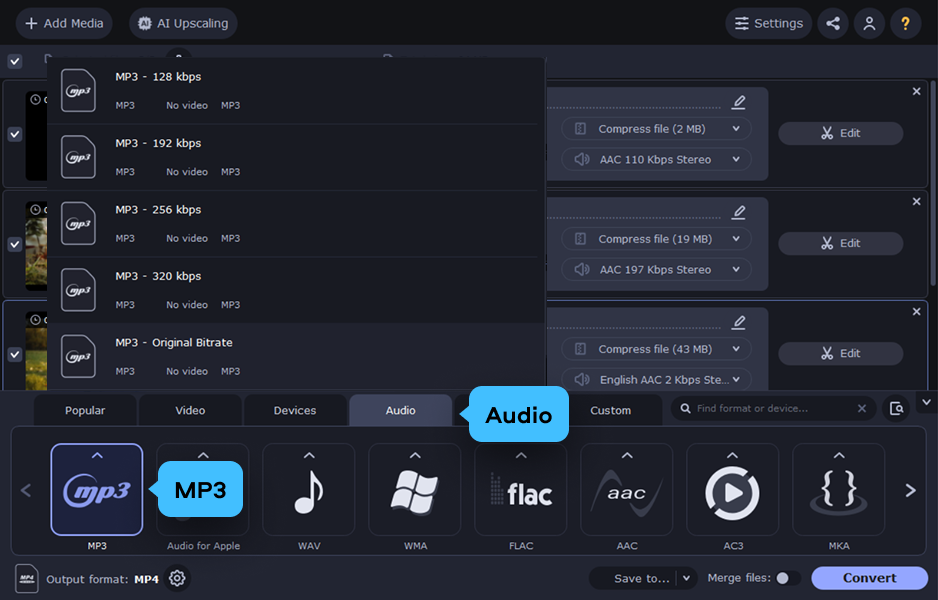
Once you’ve selected the output format, choose the folder where you’d like to save the file using the Save to field at the bottom. Then click the Convert button to start the process. Movavi uses hardware acceleration (GPU) to speed up conversions, so even long videos are processed quickly.
When the conversion finishes, Movavi will show a completion notification and open the output folder automatically. Your extracted audio file is ready – whether that’s an MP3 ripped from a YouTube-downloaded MP4, a FLAC from a concert recording, or a WAV file for further editing.
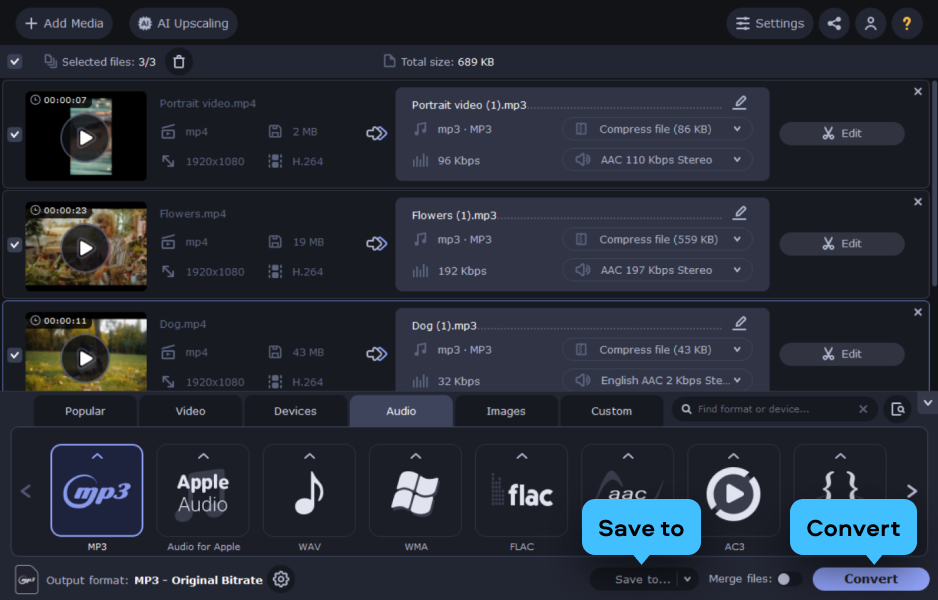
Here’s a video tutorial by the Movavi team showing how to extract audio from a video using Movavi Video Converter. It describes the process for MP3, but the same steps apply if you want to save the audio in another format.
Learning how to extract audio from a video is a genuinely useful skill – whether you’re pulling music from an MP4 file, saving a podcast from a recorded video, or ripping dialogue from footage. VLC is a solid free app that handles the job without any additional software, though it requires a few extra steps to configure the output correctly.
For a faster and more straightforward experience, Movavi Video Converter lets you export audio in MP3 or any other format with just a few clicks. Both tools are available on Windows and Mac, and with this guide you now know exactly how to pull audio from a video using either one.
If you want to pull only a specific part of the audio – for example, a single song or a short clip – you can use VLC’s Playback > Record feature to capture just the segment you need while the video plays. In Movavi Video Converter, you can use the built-in Trim tool to cut the video to the desired segment before extracting the audio. This way you get exactly the portion you need without manually editing the output file.
Extracting audio from a video for personal use – such as keeping a backup of content you own – is generally considered acceptable in most countries. However, ripping audio from copyrighted material (like commercial music videos or streamed content) and distributing or publishing it without permission may infringe on copyright law. Always check the terms of service of the platform you’re downloading from and ensure you have the rights to use the audio. When in doubt, look for content licensed under Creative Commons or royalty-free sources.
Yes. VLC is a completely free, open-source app that lets you convert video to audio at no cost. It works on Windows, Mac, and Linux. Movavi Video Converter also offers a free trial that allows you to test the software, though the trial version has a few limitations; the full version requires a purchase. For a 100% free solution, VLC is the best choice. For a faster, more polished experience, Movavi Video Editor is worth the upgrade.
On mobile devices, there are several free apps available for both Android and iOS. On Android, apps like MP3 Video Converter or VidCompact allow you to export audio from video files directly on your phone. On iOS, you can use Documents by Readdle combined with a web-based converter, or look for dedicated audio extraction apps on the App Store. For best results and full format control – especially on desktop – software like VLC or Movavi Video Converter remains the most reliable choice.