We use cookies to improve the services we offer you. By continuing to browse this site, you consent to keep them in accordance with our Privacy Policy.
×We use cookies to improve the services we offer you. By continuing to browse this site, you consent to keep them in accordance with our Privacy Policy.
×
 120
120
 8 min
8 min
VLC subtitles work three ways: load an external file (SRT, ASS, VTT), auto-load from the same folder on any laptop or PC, or search and download directly inside VLC via the VLSub extension. Each method takes under a minute and works on both Windows and Mac computers.
The one thing VLC can’t do is generate subtitles from a video’s audio – that requires AI software. This guide covers every method in full, then shows the faster AI alternative for creators who need to produce subtitle files from scratch.
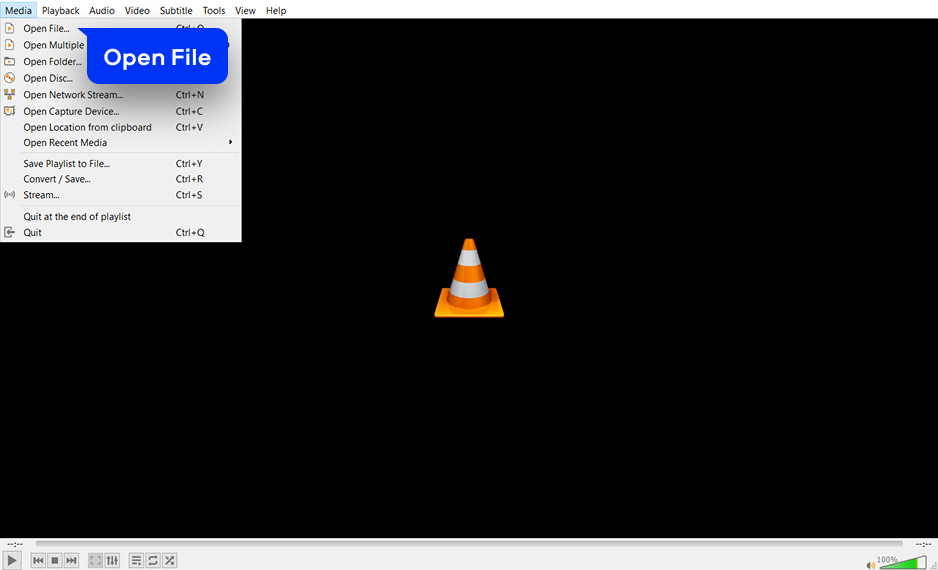
Launch VLC on your PC or Mac. Click Media > Open File and select the video file you want to watch with subtitles. The video loads and plays automatically.
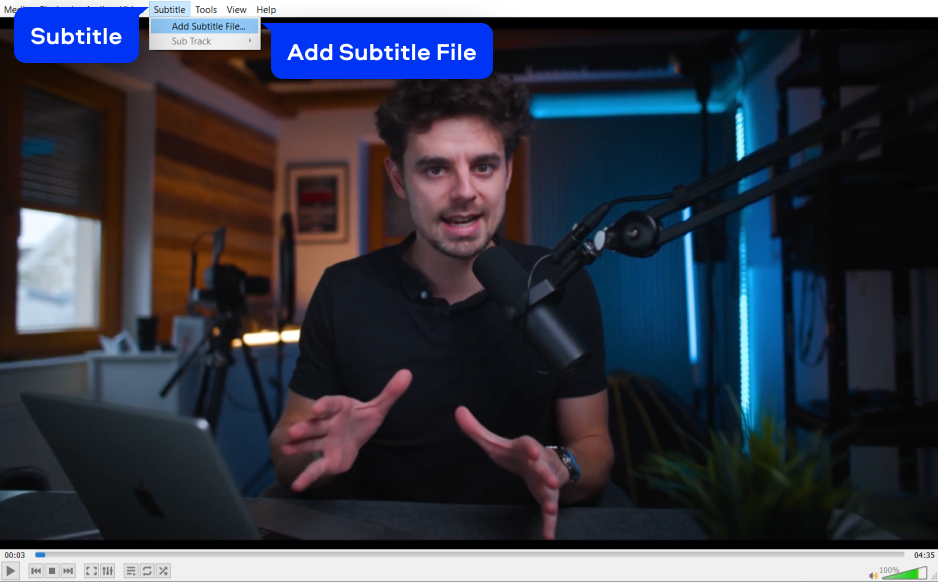
In the top menu bar, click Subtitle, then select Add Subtitle File. Browse to your subtitle file and select it. VLC supports SRT, ASS, VTT, SUB, and other subtitle formats. The track activates immediately. If timing is off, use the sync adjustment in Step 7 below.
| Faster shortcut: Drag and drop an SRT or ASS file directly onto the VLC playback window. VLC loads it instantly without using any menu. |
Place the subtitle file in the same folder as the video and give it the same filename with a subtitle extension. Example: movie.mp4 > movie.srt or movie.en.srt. VLC auto-detects matching subtitle files when the video opens – no extra steps needed.
Step 2. Confirm auto-subtitle loading is enabled
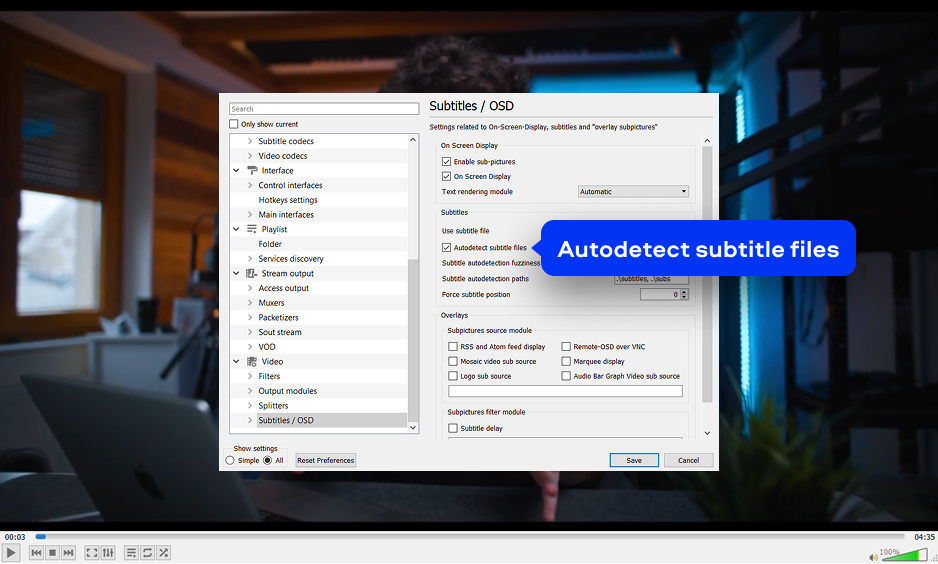
Go to Tools > Preferences > Subtitles / OSD and confirm Autodetect subtitle files is ticked (enabled by default in VLC). Click Save. Any subtitle file named to match the video file now loads automatically and permanently every time you open that video.
VLC accepts all widely used subtitle file formats and embedded tracks in video containers:
| SRT (SubRip Text) – most common external subtitle format |
| ASS / SSA (Advanced SubStation Alpha) – styled subtitles |
| VTT (WebVTT) – web standard captions |
| SUB / IDX (MicroDVD / VobSub) – DVD-style subtitles |
| TTML / DFXP – timed text markup for streaming |
| SMI / SAMI – Windows Media subtitle format |
| MKV embedded subtitle tracks (multiple tracks per file) |
| MP4 embedded subtitles (3GPP / TTXT) |
| VOB subtitles from DVD discs |
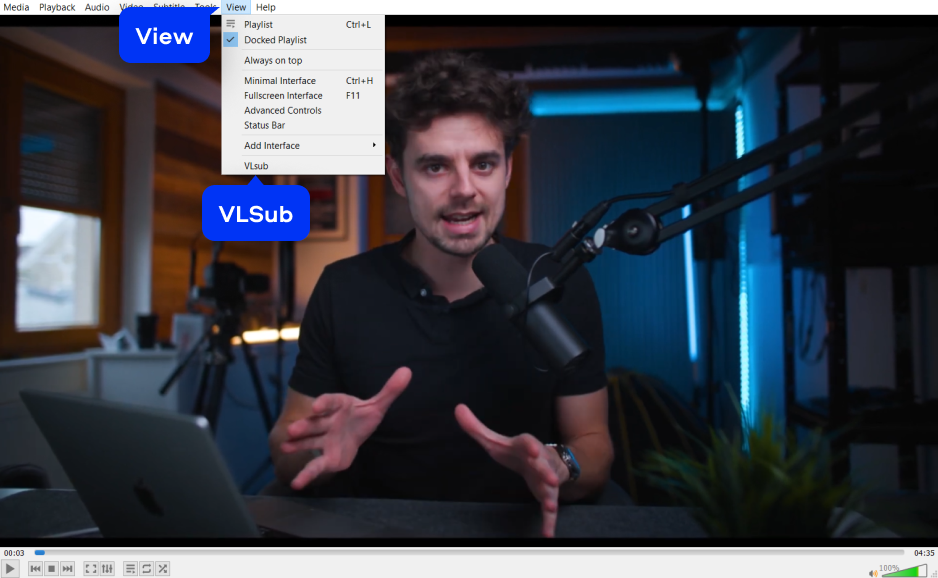
VLSub is a built-in extension in modern VLC that searches OpenSubtitles.org directly from the player. With your video open, click View > VLSub at the bottom of the list. The VLSub search panel opens as a small window.
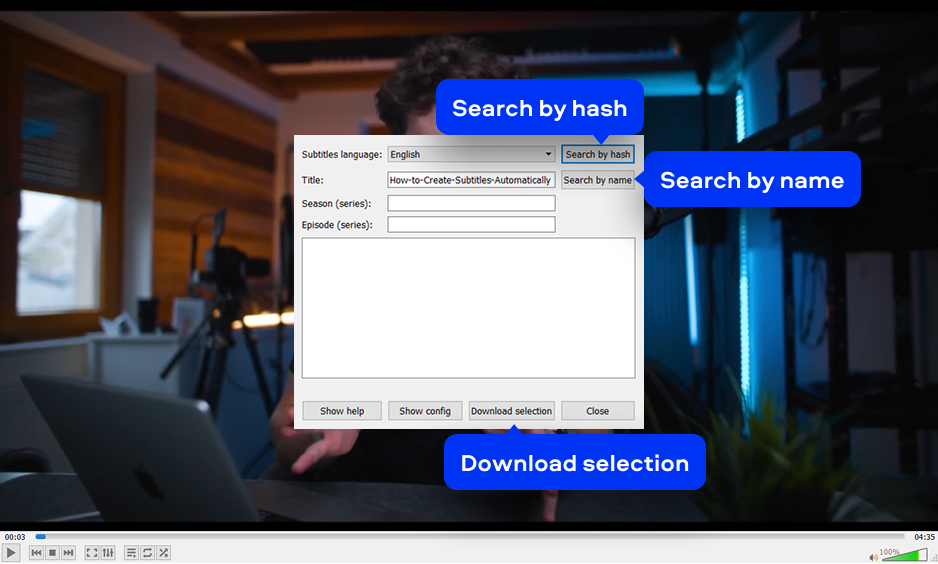
In the VLSub panel, type the movie or show title in the Title field and choose a language. Click Search by name (or Search by hash for a precise match). Select the best subtitle file from the results list and click Download selection. VLC downloads and activates the subtitle track automatically.
When burning subtitles permanently into a video via Media > Convert / Save with transcoding enabled, VLC can output to:
| MP4 / M4V – soft-embedded or hardcoded subtitles (H.264 + MP3/AAC) |
| MKV – multiple embedded subtitle tracks preserved |
| MPEG-TS – embedded subtitle stream |
| WebM – embedded WebVTT subtitle track |
| OGV – embedded subtitle via Convert / Save |
| AVI – limited subtitle embedding |
| Important: Standard Convert / Save only embeds soft subtitles (toggleable). To burn subtitles permanently so every player shows them, enable Activate Transcoding in the Convert / Save stream settings. |
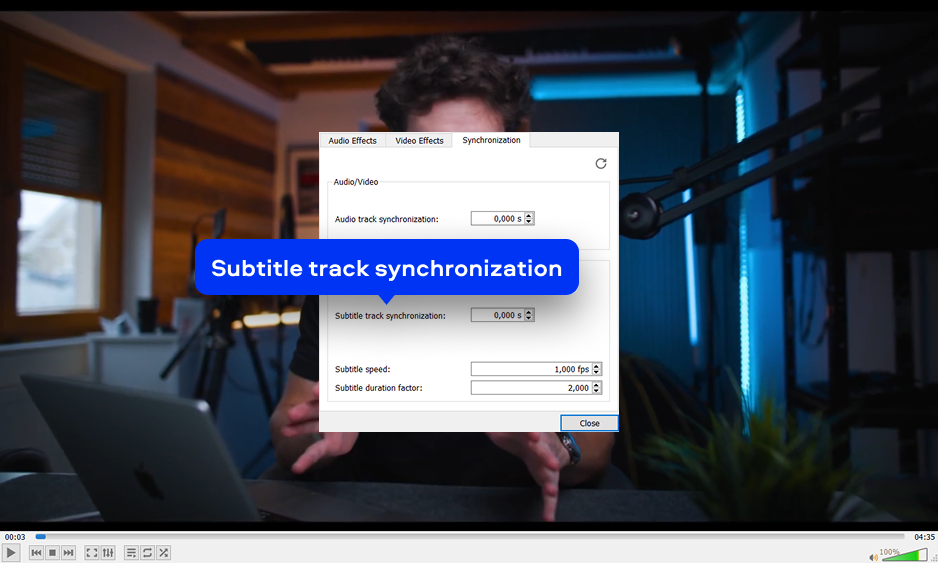
If subtitles are out of sync, go to Tools > Track Synchronization and adjust Subtitle track synchronization (positive = delay, negative = advance). During playback, press H to delay 50ms or G to advance 50ms. To change font, size, and color, go to Tools > Preferences > Subtitles/OSD.
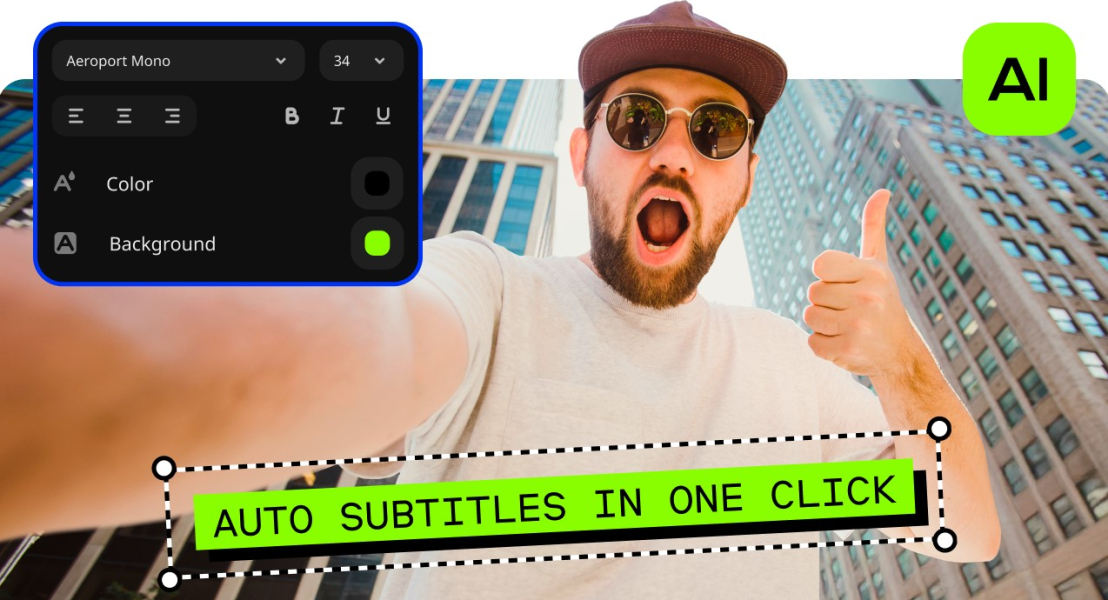
Movavi Video Editor is the practical alternative for anyone who needs generated subtitles, not just loaded ones. Its AI auto subtitles tool transcribes spoken audio into timed captions in one click, supporting multiple languages, on both Windows and Mac computers. No external subtitle file required.
The generated subtitles appear as editable text blocks on the timeline. Edit any line, change font and color, adjust timing, and export the video with subtitles burned in permanently. The 7-day free trial gives full access to AI auto subtitles.
| 🏷️ Save on Movavi Video Editor
Get AI-powered auto-subtitles and much more. Use a promo code for a discount. Check current promo code → |
Three steps from an unsubtitled video to a permanently captioned export.
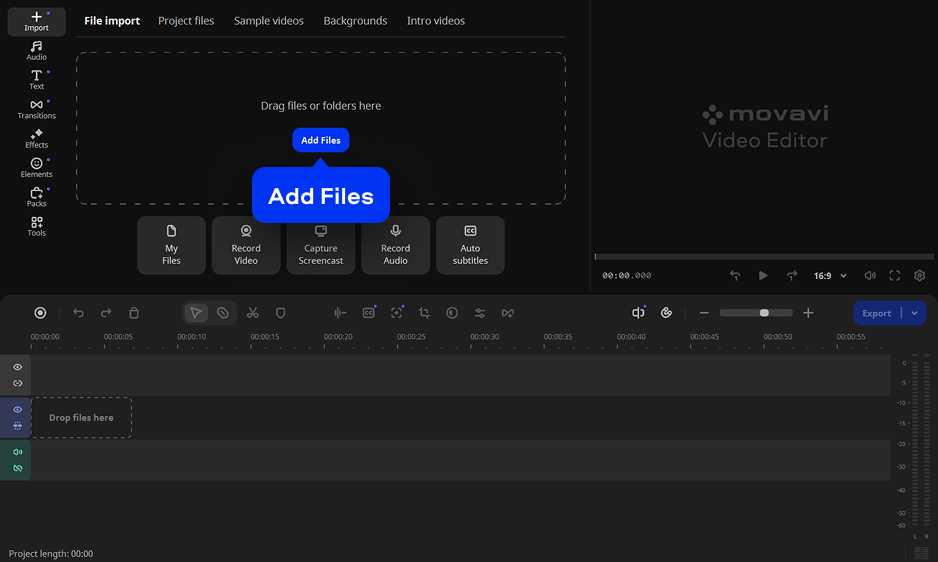
Download Movavi Video Editor for Windows or Mac. Install and open. Click Add Files, import your video, and drag it onto the Timeline.
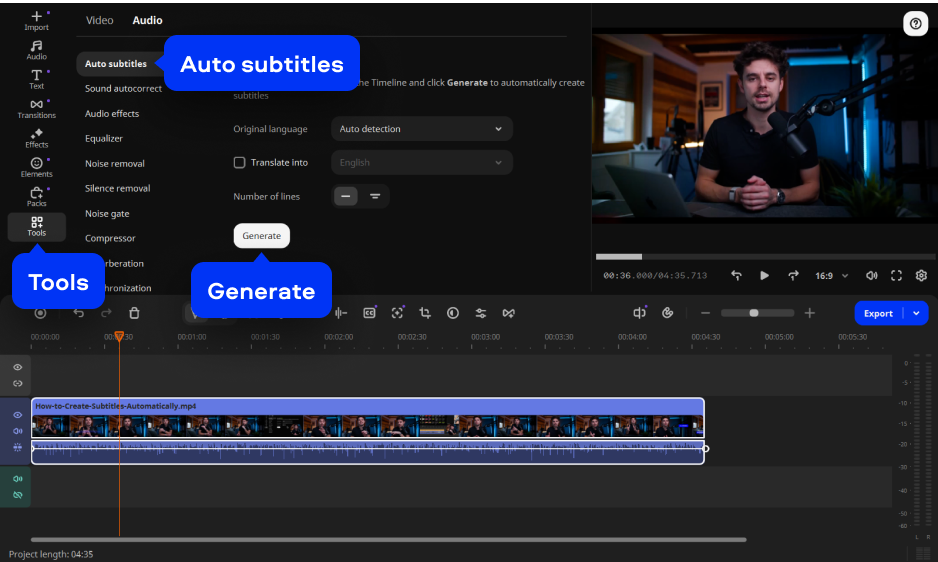
Click the Audio tab in the left panel, then click Auto subtitles. Choose the audio language from the dropdown and click Generate. Movavi’s AI transcribes the audio and places timed subtitle blocks on the Timeline. Click any subtitle block to edit text, timing, font, and color.
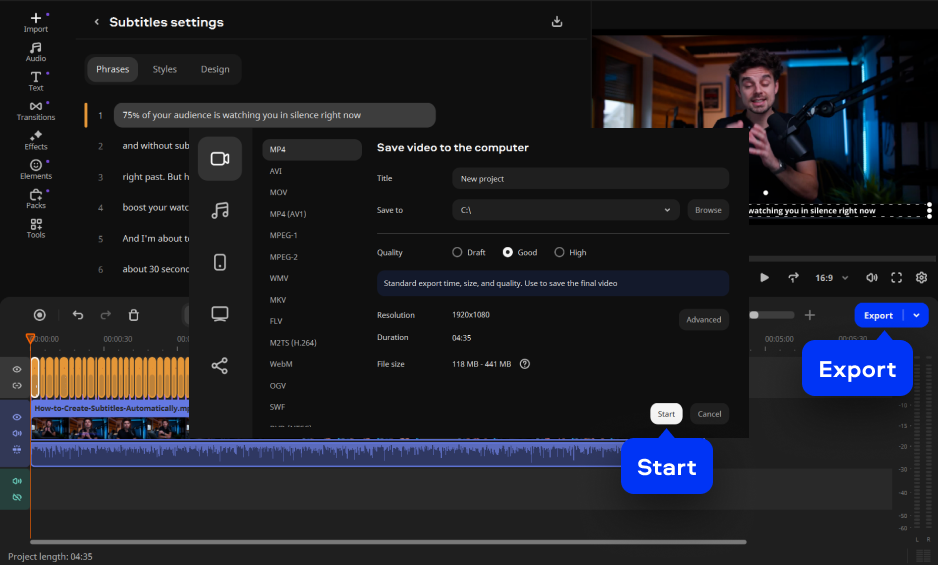
Click Export. Select MP4 as a target format, click Start, and save to your folder.
| ▶️ Video tutorial – Movavi channel
How to add auto-subtitles in Movavi Video Editor |
Subtitles in VLC handle every viewing scenario: drag-drop an SRT file, name it to match the video for automatic loading, or use VLSub to search online – all free, all on any laptop, Windows PC, or Mac. Sync and appearance tools are built in.
When you need to generate subtitles from audio – not just load them – Movavi Video Editor’s AI auto subtitles tool does it in one click and exports the result burned permanently into the video. Free trial on both platforms.
VLC cannot generate subtitles from audio – it can only load or find existing subtitle files. The closest option is VLSub (View > VLSub), which searches OpenSubtitles.org for matching subtitle files based on the movie title or file hash. For videos with no existing subtitles anywhere online – personal recordings, tutorials, corporate content – you need AI tools in video-editing software like Movavi Video Editor, which transcribes audio and generates timed captions automatically.
To make VLC auto-load subtitles:
There are three options available:
All three methods work on Windows, Mac, and Linux computers.
VLC has subtitle playback built in. It displays subtitles from any supported file format and from embedded tracks in MKV, MP4, and other containers. The VLSub extension for searching subtitles online is also built in. What VLC does not have is a working AI subtitle generator – the feature announced at CES 2025 hasn’t reached a stable public release yet. For AI-generated subtitles, Movavi Video Editor’s auto subtitles tool produces accurate captions in one click and exports them burned permanently into the video.