We use cookies to improve the services we offer you. By continuing to browse this site, you consent to keep them in accordance with our Privacy Policy.
×We use cookies to improve the services we offer you. By continuing to browse this site, you consent to keep them in accordance with our Privacy Policy.
×
 101
101
 8 min
8 min
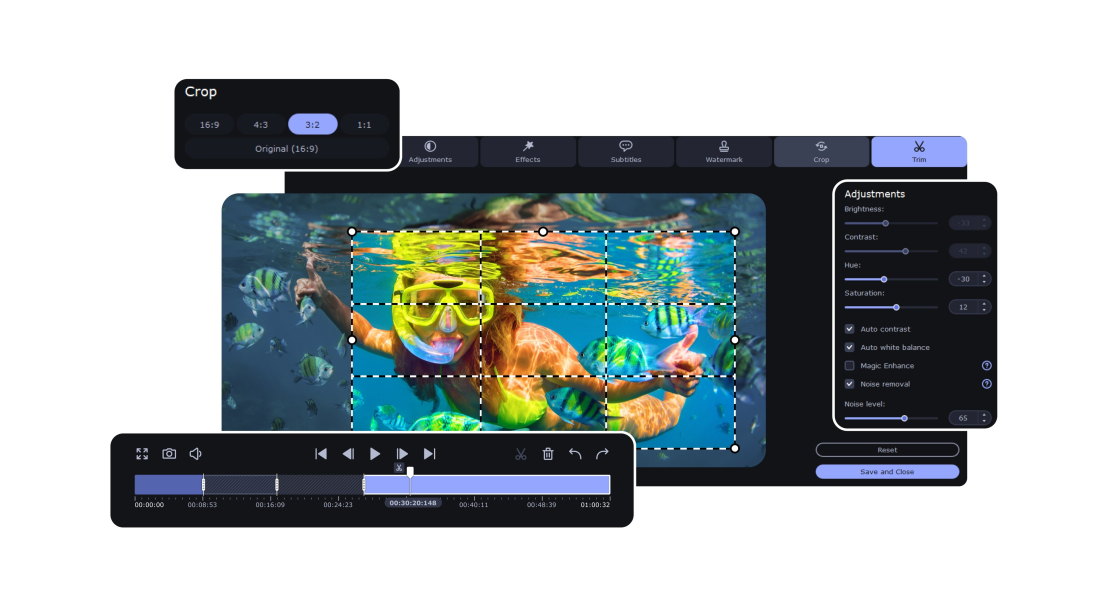
Recorded a clip sideways or upside down? VLC media player includes rotation controls for 90-, 180-, and 270-degree turns, plus a custom-angle option. The app is free and available for Windows and macOS.
This guide explains how to rotate video in VLC during playback and permanently save a rotated copy. It also covers the Convert/Save filter required for export and shows a shorter Movavi Video Converter workflow.
VLC handles rotation in two stages. The Geometry controls change the video during playback, while Convert/Save creates a new file with the selected transformation applied. The steps below cover both parts.
Step 1. Open your video in VLC
Launch VLC media player on your PC or Mac. Go to Media → Open File, select the video you want to rotate, and click Open. The video will begin playing in the VLC window.
You can also drag and drop the file directly into VLC. Once the video is loaded, leave it playing or pause it before opening the rotation controls.
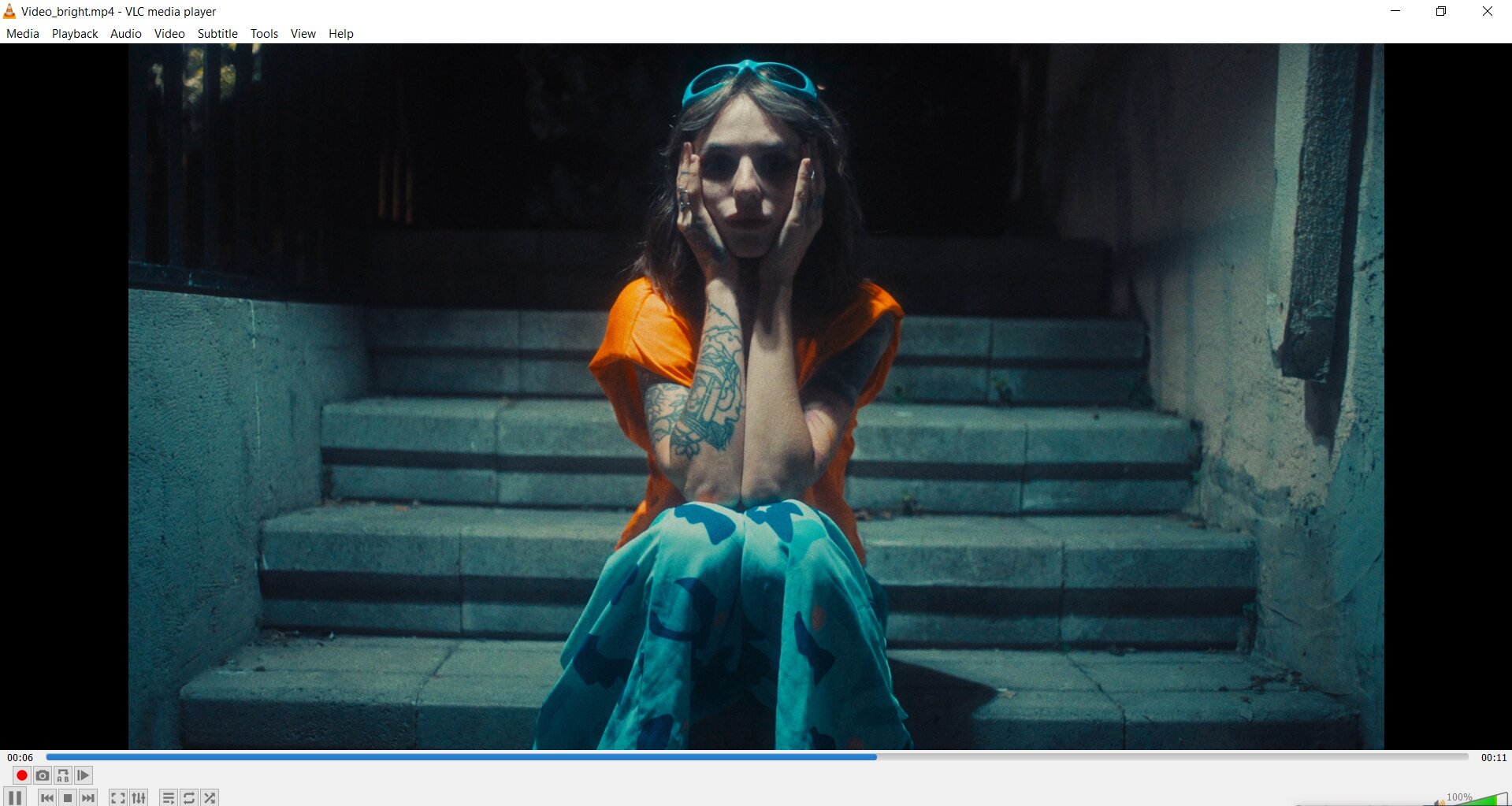
Step 2. Enable the Transform filter
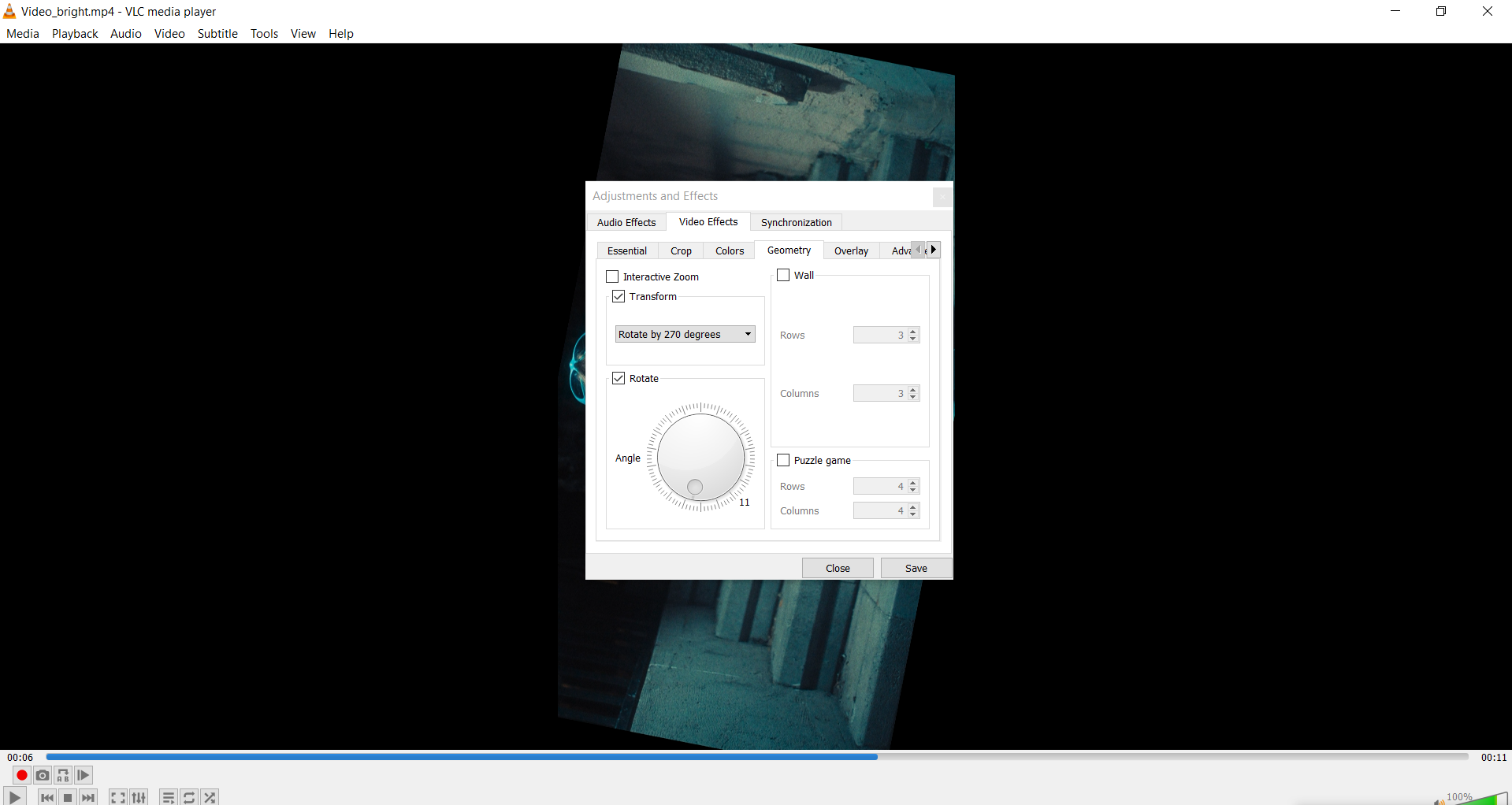
With the video open, go to Tools → Effects and Filters. In the Adjustments and Effects window, select Video Effects → Geometry.
Check the Transform box, then choose Rotate by 90 degrees, Rotate by 180 degrees, or Rotate by 270 degrees from the dropdown. For a custom angle, select Rotate and adjust the dial. The preview updates as you change the angle.
Input formats supported by VLC media player
VLC can open most common video formats, so the rotate workflow usually starts from a standard media file. Common input formats include:
This broad compatibility means you can use VLC player to rotate video files from almost any source — cameras, phones, downloads, or disc rips.
The Transform filter changes the video during playback. To create a new file with the rotation applied, use VLC’s conversion settings.
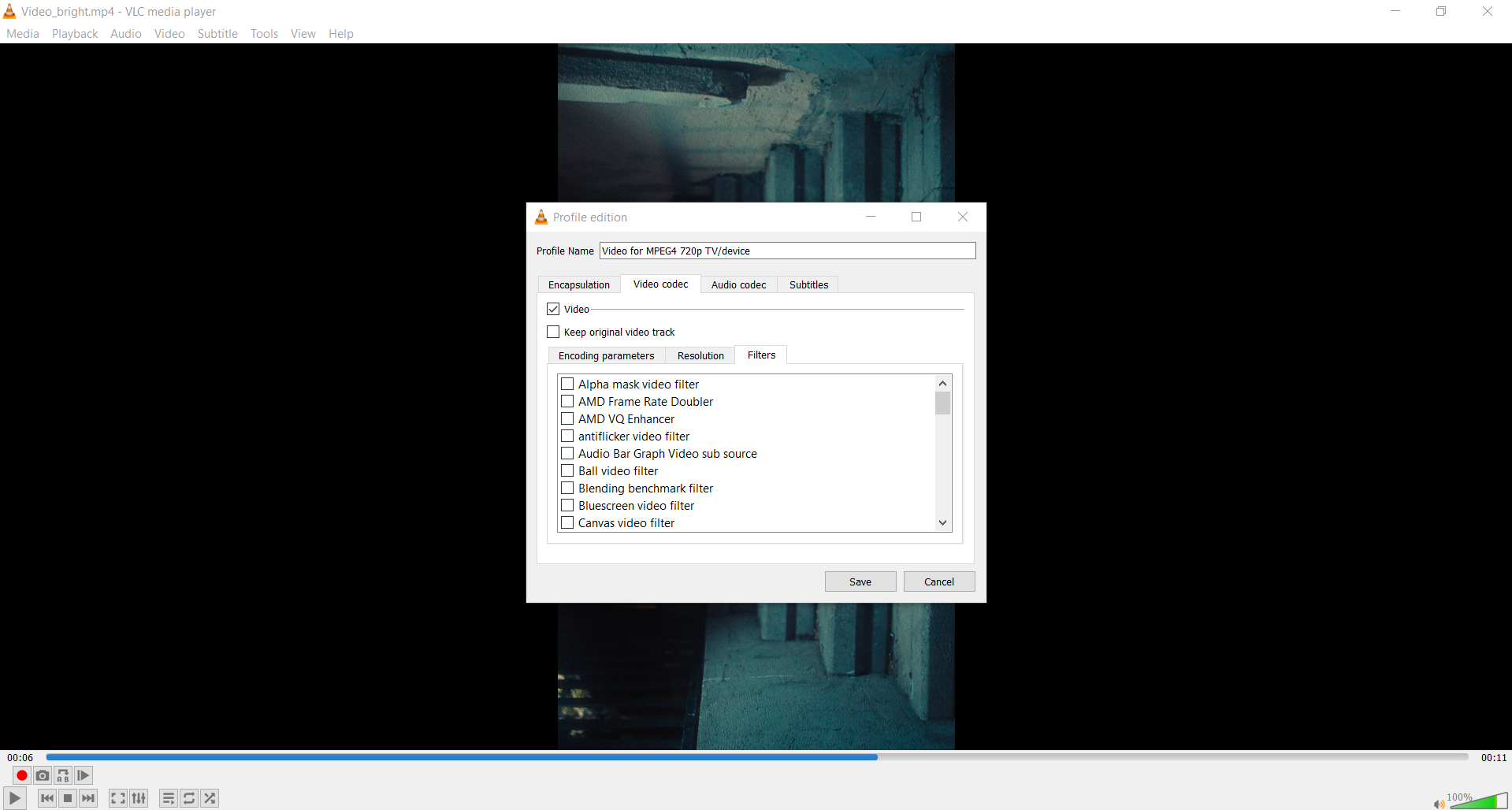
Go to Media → Convert/Save. In the Open Media window, click Add, select the original video, and click Convert/Save. In the Convert window, click Edit Selected Profile, then open Video codec → Filters. Select Video transformation filter and click Save.
Choose a destination and filename, then click Start. VLC will process the video and export the rotated copy to the selected folder.
Output formats supported by VLC media player
The available output formats depend on the conversion profile you select. Common options include:
MP4 (H.264 or H.265) – broad support across common devices and platforms
MKV – supports multiple audio and subtitle tracks
AVI – an older format used by some legacy software
TS – MPEG transport stream
WebM (VP8 or VP9) – an open format used for online video
OGG / OGV – an open-source media container
MP4 with H.264 is a common option for sharing and playback across current devices.
Movavi Video Converter is a desktop app for Windows and macOS with a built-in rotation tool. You can turn a clip left or right in 90-degree increments, rotate it 180 degrees, or flip it horizontally or vertically while checking the result in the preview window.
The software also supports batch processing, so you can adjust several files in one queue. After applying the rotation, choose an output format and destination folder, then export the corrected copies. A free trial is available for testing the workflow before purchase.
Exclusive discount on Movavi Video Converter
Rotate, convert, and export videos with Movavi – use promo code SUP0W1HGQDIS20 to save 20% on your license.
⬇ Download for Windows | ⬇ Download for Mac How to rotate video using Movavi Video Converter
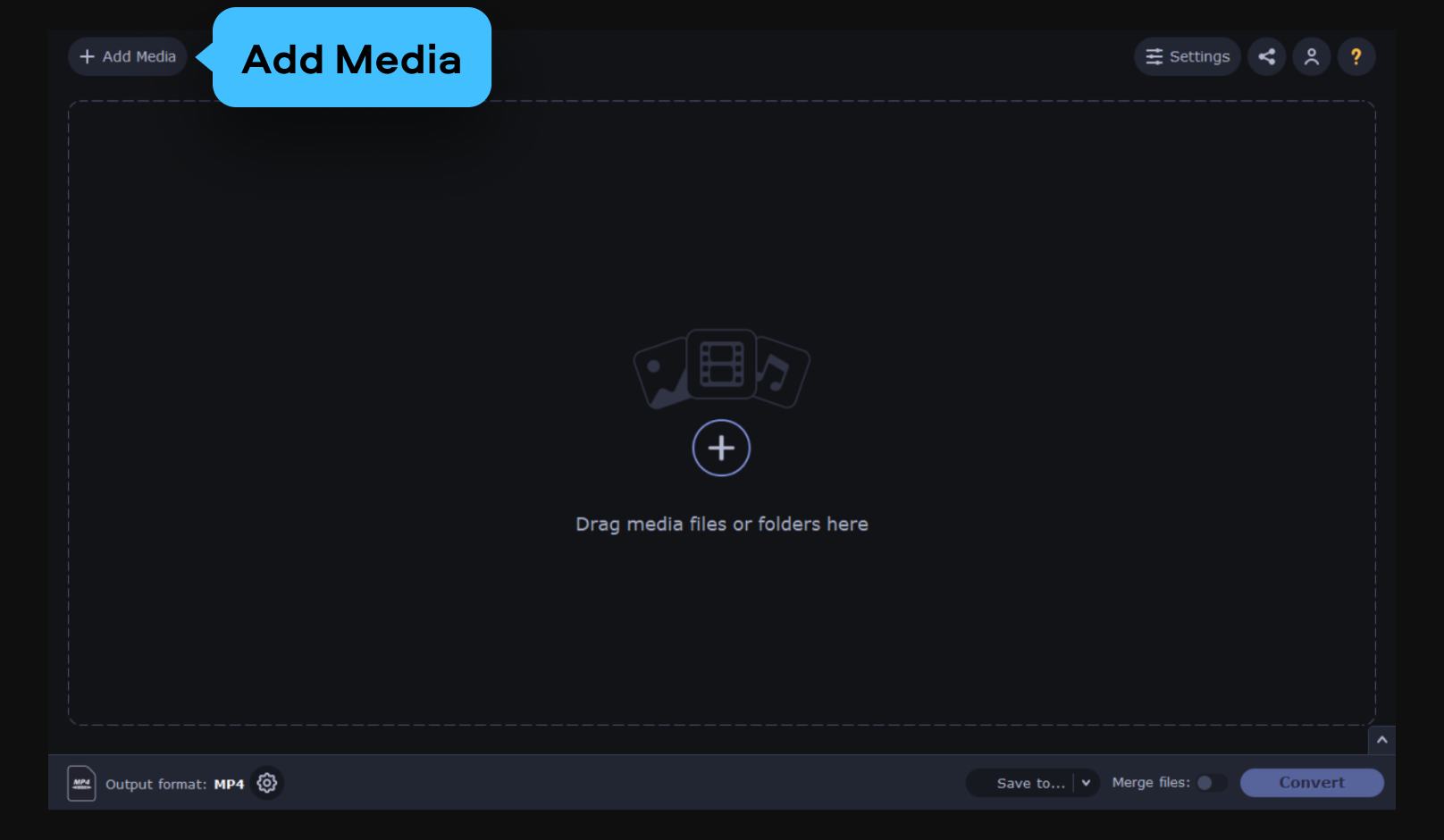
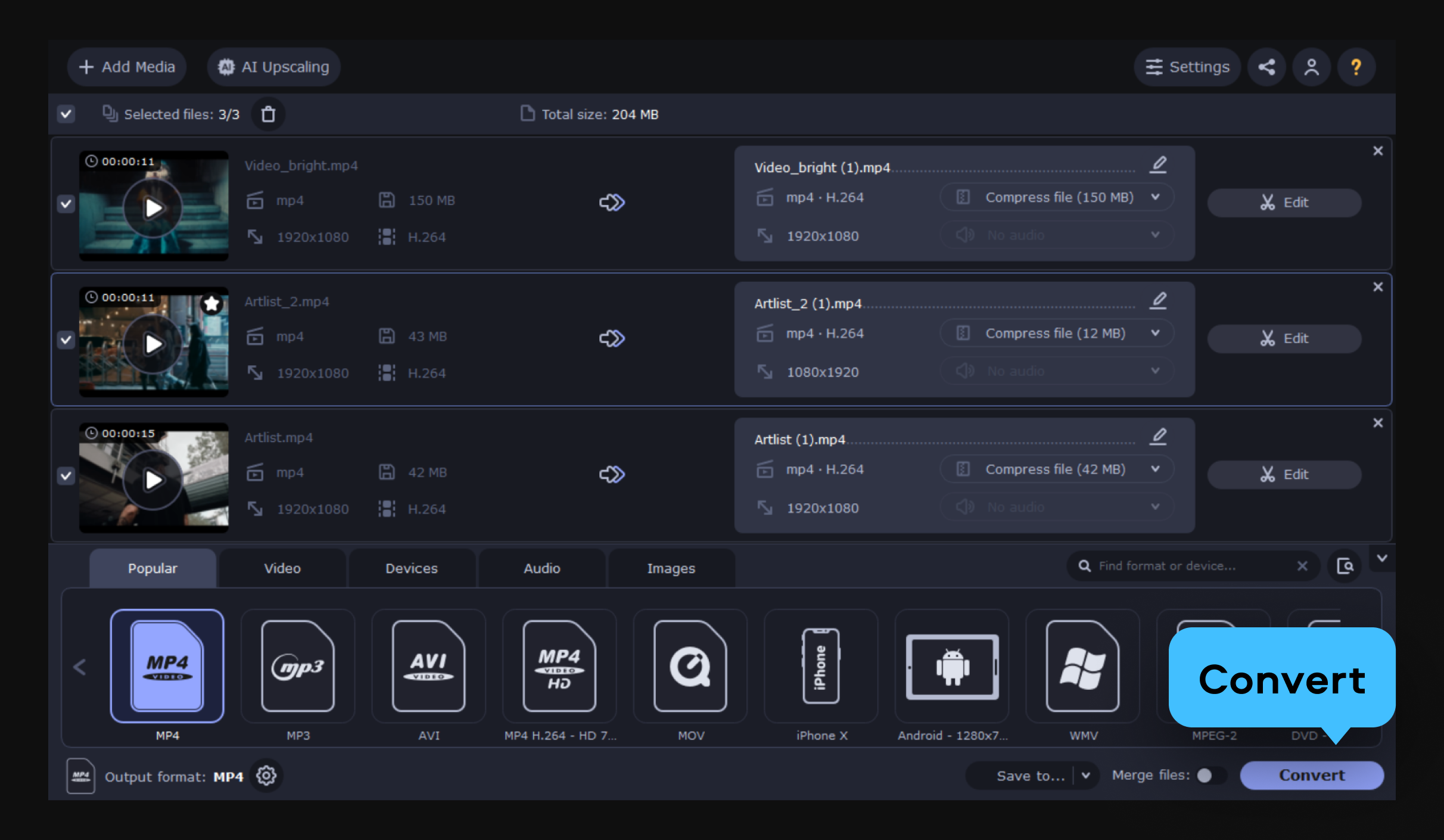
Download and install Movavi Video Converter from the official website. Open the app on your Windows PC or Mac. On the main screen, click the Add Media – or simply drag and drop your video file into the program window. Movavi supports all major input formats, so you can load MP4, MOV, MKV, AVI, and more without any conversion or pre-processing.
You can also add multiple video files at once if you need to batch-rotate several clips. The files will appear as a list in the main conversion queue, each with a thumbnail preview.
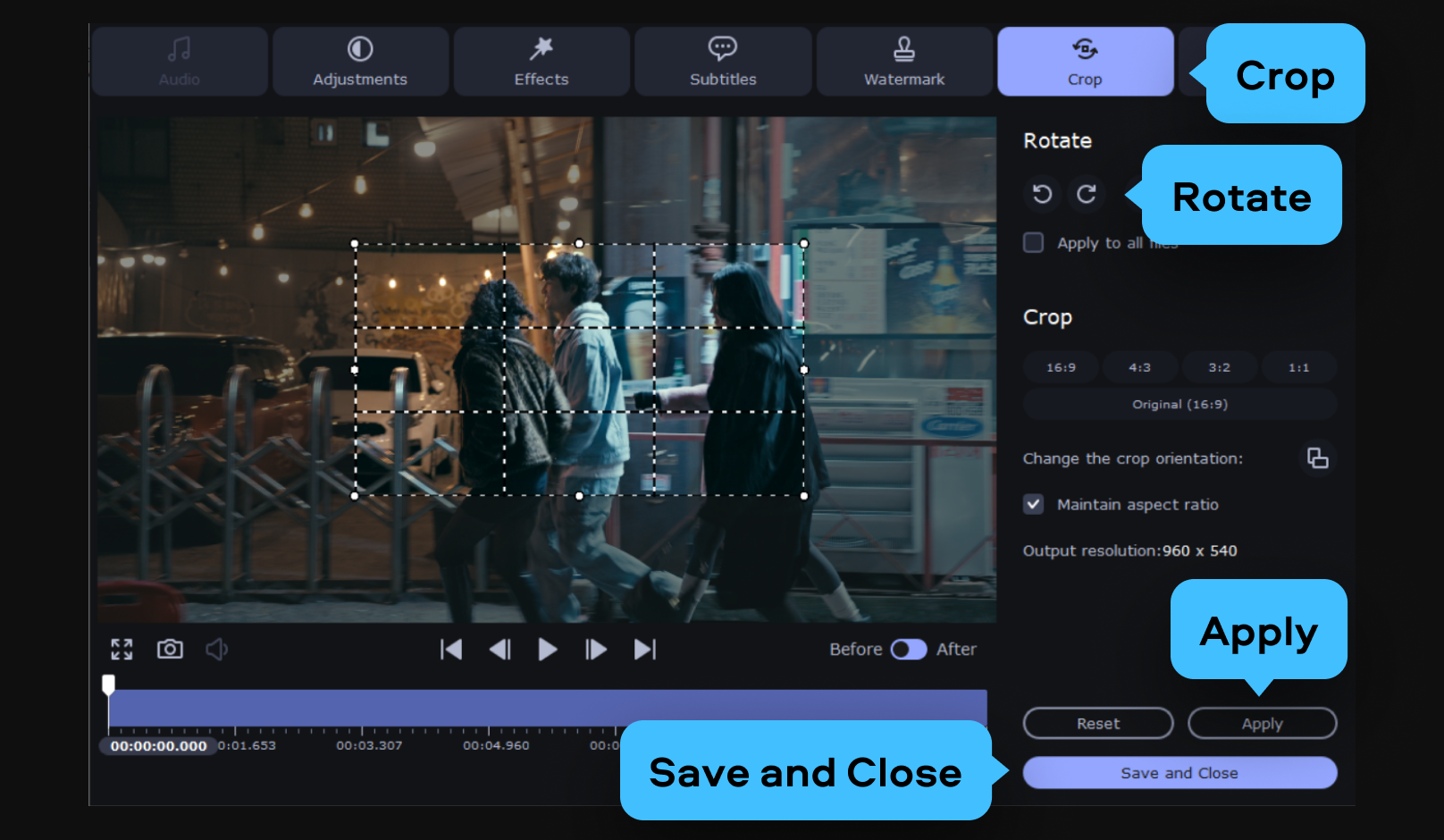
To rotate a clip, click Edit next to its thumbnail in the queue. This opens the built-in editor. Use the Rotate Left or Rotate Right button to turn the video in 90-degree increments. The Flip controls mirror the footage horizontally or vertically.
To rotate the video by 180 degrees, click the same rotation button twice. Check the result in the preview window, then click Apply, followed by Save and Close, to apply the change.
Return to the main Movavi Video Converter window and select an output format from the tabs at the bottom. MP4 with H.264 provides broad compatibility and compact file sizes. You can also select MOV, MKV, or another available format.
Click Convert, and when the export is complete, Movavi opens the folder containing the rotated copy.
VLC can rotate a video during playback and save the adjusted version through Convert/Save. The export requires the Video transformation filter, so check the profile settings before starting the conversion.
Movavi Video Converter handles rotation in a visual editor. Add the file, choose the rotation or flip command, preview the result, and export it in the required format. Both workflows create a new rotated file while leaving the original unchanged.
Go to Tools → Effects and Filters → Video Effects → Geometry. Check Transform, then select Rotate by 90 degrees from the dropdown. This changes the video during playback.
To export the rotated version, open Media → Convert/Save, edit the selected profile, and enable Video transformation filter under Video codec → Filters.
Open Tools → Effects and Filters → Video Effects → Geometry and confirm that Transform is checked. Also check that you selected a rotation angle from the dropdown.
The Geometry controls affect playback. To create a new video with the rotation applied, use Media → Convert/Save and enable Video transformation filter in the selected profile.
Yes. Open Media → Convert/Save, add the original file, and edit the selected conversion profile. Under Video codec → Filters, enable Video transformation filter. Choose a destination filename and click Start.
VLC creates a separate rotated copy, so the original video remains unchanged. Movavi Video Converter provides an alternative visual workflow with rotation controls inside its editor.
Open Tools → Effects and Filters → Video Effects → Geometry. Select Transform, then choose Rotate by 180 degrees from the dropdown. VLC applies the change during playback.
To export a new file with the same orientation, open Media → Convert/Save, edit the selected profile, and enable Video transformation filter under Video codec → Filters. Choose a destination file, then click Start.