We use cookies to improve the services we offer you. By continuing to browse this site, you consent to keep them in accordance with our Privacy Policy.
×We use cookies to improve the services we offer you. By continuing to browse this site, you consent to keep them in accordance with our Privacy Policy.
×
 141
141
 19 min
In 2026, taking photos and videos has become a natural extension of our daily lives. We document every important moment: from a child’s first steps to grand family trips. However, behind the terabytes of data on our drives and home servers (NAS) often hides the main problem of the digital age: total chaos.
Many people make the same mistake. They focus all their energy on learning complex filters or neural network retouching, forgetting that even the most advanced editor is useless if you can’t find the right shot. In 2026, when personal archives are growing exponentially, proper digital hygiene and home storage organization are evolving from a hobby into a necessity for preserving a family legacy.
Creative efficiency today directly depends on how logically you structure your journey from pressing the shutter button to the finished album. It’s impossible to enjoy creativity if finding that vacation photo from three years ago takes more time than editing it. You need to lay a solid foundation first – a smart archive management system that connects you to your NAS – and only then move on to “building the walls” – artistic editing.
In this article, we’ll provide a detailed overview of six tools that will change the way you approach your personal photos. We’ll explore the best solutions for smartly sorting your home archives and modern editors that can help transform any random shot you took during the golden hour into a priceless masterpiece worthy of being printed on canvas.
By 2026, the traditional manual sorting of photos into folders will be a thing of the past. With today’s volumes of photography, manually organizing files by dates and events becomes an endless, tedious task that eats into creative time.
Now you don’t need to remember when and where a photo was taken; simply enter the relevant tag (for example, “mountains” or “portrait”) in the search bar, and the neural network-based system will instantly find the right frame among hundreds of thousands of others. This is made possible by automatic content analysis, in which AI scans pixels and assigns semantic tags to images without user intervention.
An effective workflow in 2026 is built on three pillars: indexing speed, local AI accuracy, and depth of EXIF/IPTC metadata processing.
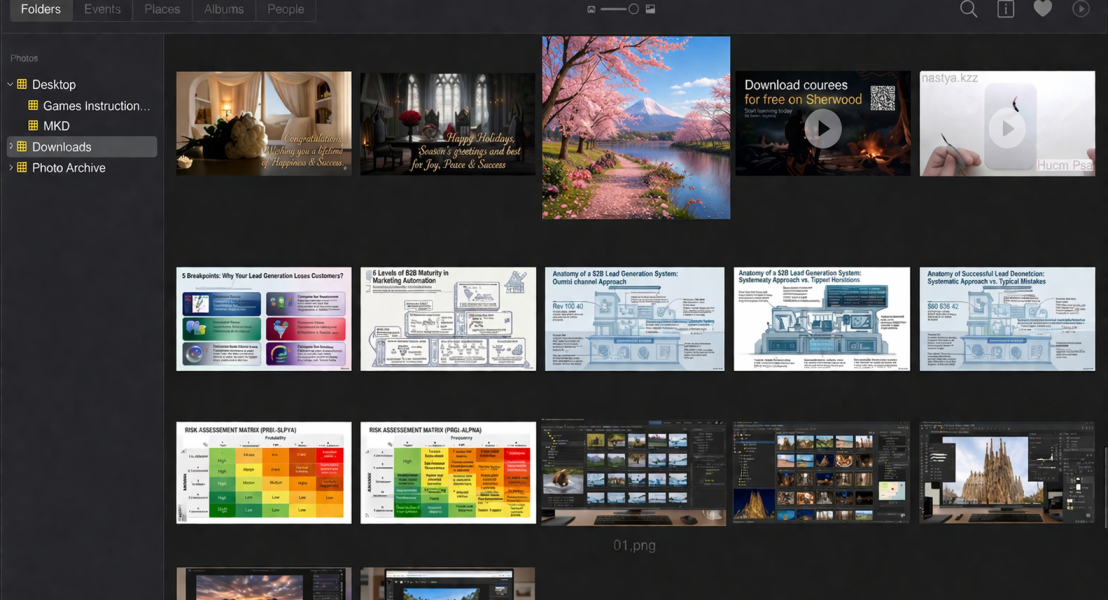
Tonfotos is a specialized program for organizing family photo archives, helping you organize large collections of photos and videos on your computer, external drives, and NAS without complex settings. The app is designed from the ground up for personal and family use: preserving family history, sorting out old folders, removing duplicates, and making the archive convenient for everyday use.
Features:
– Easily work with existing folders and drives: Tonfotos doesn’t force you to move files to a “closed” media library, but rather indexes your existing folders on your PC, external drives, and network storage, combining them into a single archive.
– Organizing tools: search and delete duplicates, automatically transfer photos to the main archive, group by dates, events, people and places, convenient chronological viewing.
– Automatic photo transfer from your phone: using the TonfotosSync app, new photos from mobile devices are automatically transferred to your home archive on your computer or NAS, without manual copying or cables.
– Family archive features: face recognition, quick search for photos of specific people, support for large collections and slow, long-term sorting of old photos.
Best for: Tonfotos is ideal for users who want to organize their home or family photo archives: collecting photos from old disks, flash drives, and phones into a single, easy-to-understand catalog. The program is ideal for families who want to preserve the visual history of multiple generations, as well as for those who prefer to store their archives locally – on their computer or NAS – rather than in a public cloud.
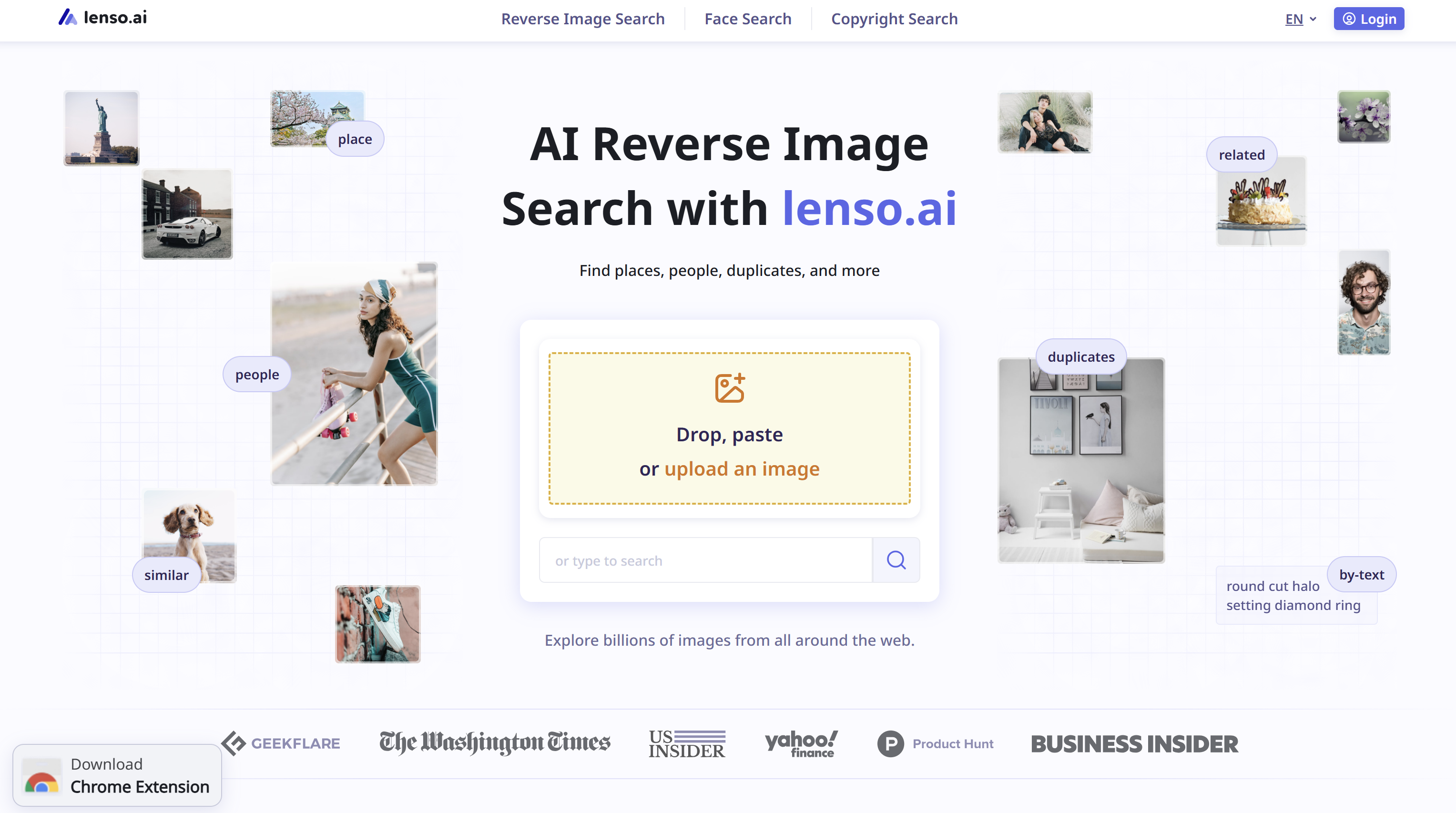
Lenso.ai is an AI-powered reverse image search tool that helps users find visually similar photos, duplicate images, and online sources where a picture appears. It can be used to verify image origins, discover related visuals, or monitor how photos are reused across the web.
Features:
– Reverse image search: upload a photo to find visually similar images and related results online.
– Duplicate and source detection: identify duplicate versions of an image and discover websites where the image has been published.
– AI-powered visual analysis: search by categories such as people, places, similar images, and duplicates for more accurate results.
– Fast visual discovery: quickly explore related content, alternative versions, or higher-quality copies of an image.
– Family archive features: face recognition, quick search for photos of specific people, support for large collections and slow, long-term sorting of old photos.
Best for: photographers, content creators, designers, marketers, and everyday users who want to organize visual references, verify image sources, find similar photos, or track where their images appear online.
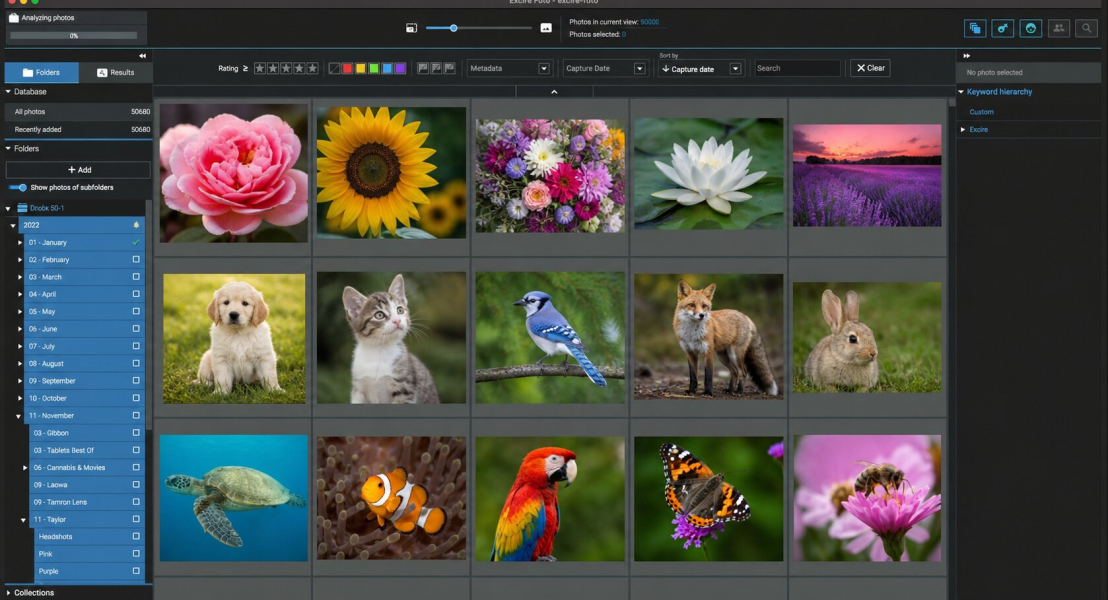
Excire Foto is a standalone photo collection management program that relies on artificial intelligence: automatic keyword assignment, smart content search, and advanced image selection. It helps you quickly organize large archives – from family photos to work shoots – and find the right shots without time-consuming manual tagging.
Features:
– AI Search and Auto-Keywords: Excire analyzes your photos and automatically adds descriptive keywords to them, allowing you to search by objects, scenes, and themes in just a few clicks.
– Search for similar and duplicate images: Built-in search modes for duplicates and visually similar shots help you clear your archive of duplicates and quickly select the best shots from a series.
– Smart selection (AI culling): the program can group photos by sharpness, success, composition, and other criteria, speeding up the selection of photos after trips, family holidays, or photo shoots.
– People and face recognition: Advanced people search tools, face and age filtering make it easier to work with family and group photos.
Best for: Excire Foto is especially suitable for owners of large home and personal archives who want to run their library through AI and quickly and easily search for people, objects, and subjects without the hassle of manual tagging. The program will also be of interest to enthusiastic photographers and content creators: it can be used as a front-end for selecting and organizing photos, and then continue processing them in familiar editors like Photoshop or Luminar.
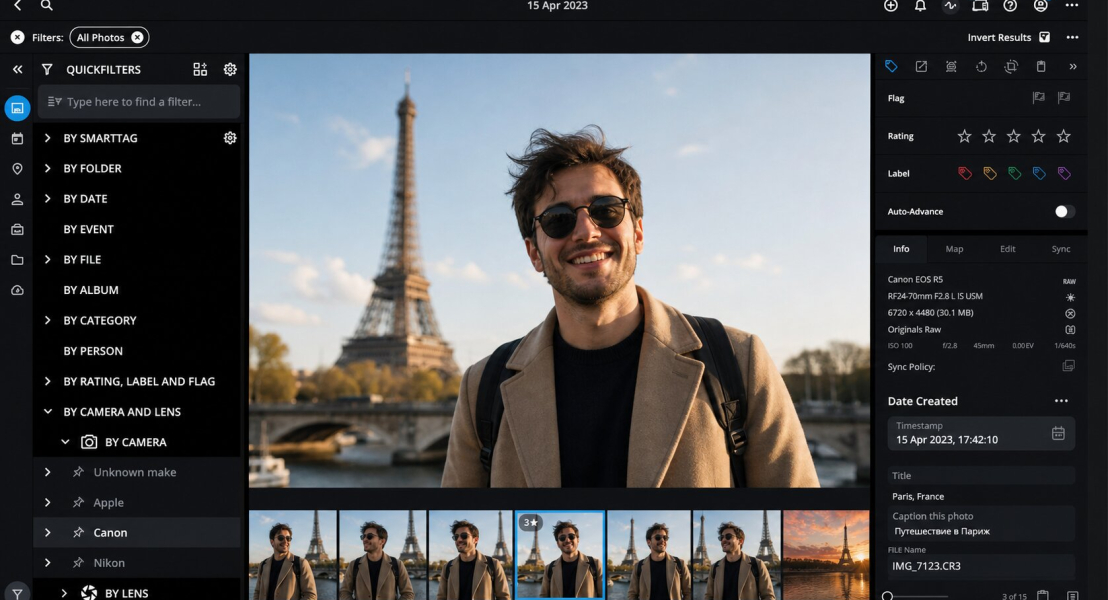
Mylio Photos is a cross-platform software for organizing personal and family media libraries. It combines photos and videos from different devices into a single library, focusing on privacy and storage control. Unlike purely cloud-based services, Mylio allows users to decide where originals and copies of files are stored, allowing them to build a family library without being tied to a single public cloud.
Features:
– One library across all your devices: Mylio connects computers, smartphones, tablets, and external drives into a single system, syncing your media library directly between devices (peer-to-peer) and via Mylio Drive.
– Private Family Sharing: Private Family Sharing allows you to create a shared family library with customizable permissions for different family members, while photos are not made publicly available or indexed by third-party services.
– Smart search and “family stories”: search by people, events, places, dates, keywords, and AI tags to quickly find the right photos and curate themed collections like “New Years over the past 10 years” or “child growth by year.”
– Control over storage and privacy: the user chooses which devices the originals are stored on, where the lightweight copies are located, and what metadata is hidden when sharing with family (SafeShare, private albums).
Best for: Mylio Photos is best suited for families who want to consolidate photos and videos from different devices into a single shared library without relying entirely on public cloud platforms. It’s a good choice for those who value long-term preservation of family archives across generations, privacy, and the ability to flexibly manage storage and access to content across devices.
In 2026, a simple but important rule applies to home photo archive owners: “Keeping your folders organized isn’t just about aesthetics; it’s the only way to keep your history from getting lost in the digital noise.”
According to expert estimates, an organized content creator spends less time on retouching and final editing. This time isn’t just wasted. It’s freed up by eliminating the need to manually sift through hundreds of duplicates searching for that perfect shot.
In essence, good archive management is a solid foundation that transforms disparate files on a server into a living, accessible family history.
If asset management is the foundation, then editing is the process where AI technologies enable the most daring creative ideas. We are now witnessing a qualitative leap. Modern editors don’t just adjust pixels; they “understand” the content of the image, the volume of the scene, and the physics of light.
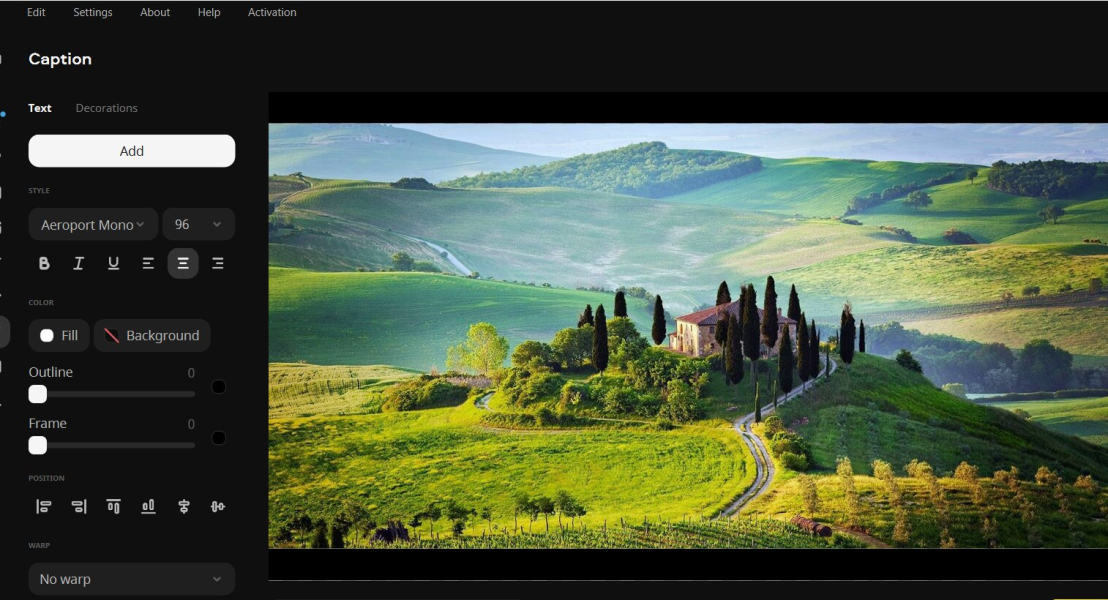
Movavi Photo Editor is an easy-to-learn yet powerful photo editor specifically positioned as a good option for beginners. The interface is designed so that even a novice can enhance a photo, remove unwanted objects, or create a beautiful image for social media in just a few minutes.
Features:
– Intuitive interface: large, clear buttons, logical tool grouping, and step-by-step panels allow you to edit by eye, without having to read lengthy manuals.
– AI tools for quick edits: automatic photo enhancement, background change or removal, removal of unwanted objects, restoration of old photos, and portrait retouching are all done in just a couple of clicks.
– A set of basic and creative tools: cropping, rotating, straightening the horizon, color correction, noise reduction, filters, text, and stickers – everything you need for everyday tasks.
– Low entry barrier: the editor is designed for beginners and users without special training – from children to adults.
Best for: Movavi Photo Editor is especially suitable for those just starting to edit photos and want to quickly achieve beautiful results without the hassle – for family photos, vacations, and everyday snaps for social media. It’s a convenient option for the casual user who needs a desktop editor that simply opens a photo → edits → saves, without complex terminology or professional panels.
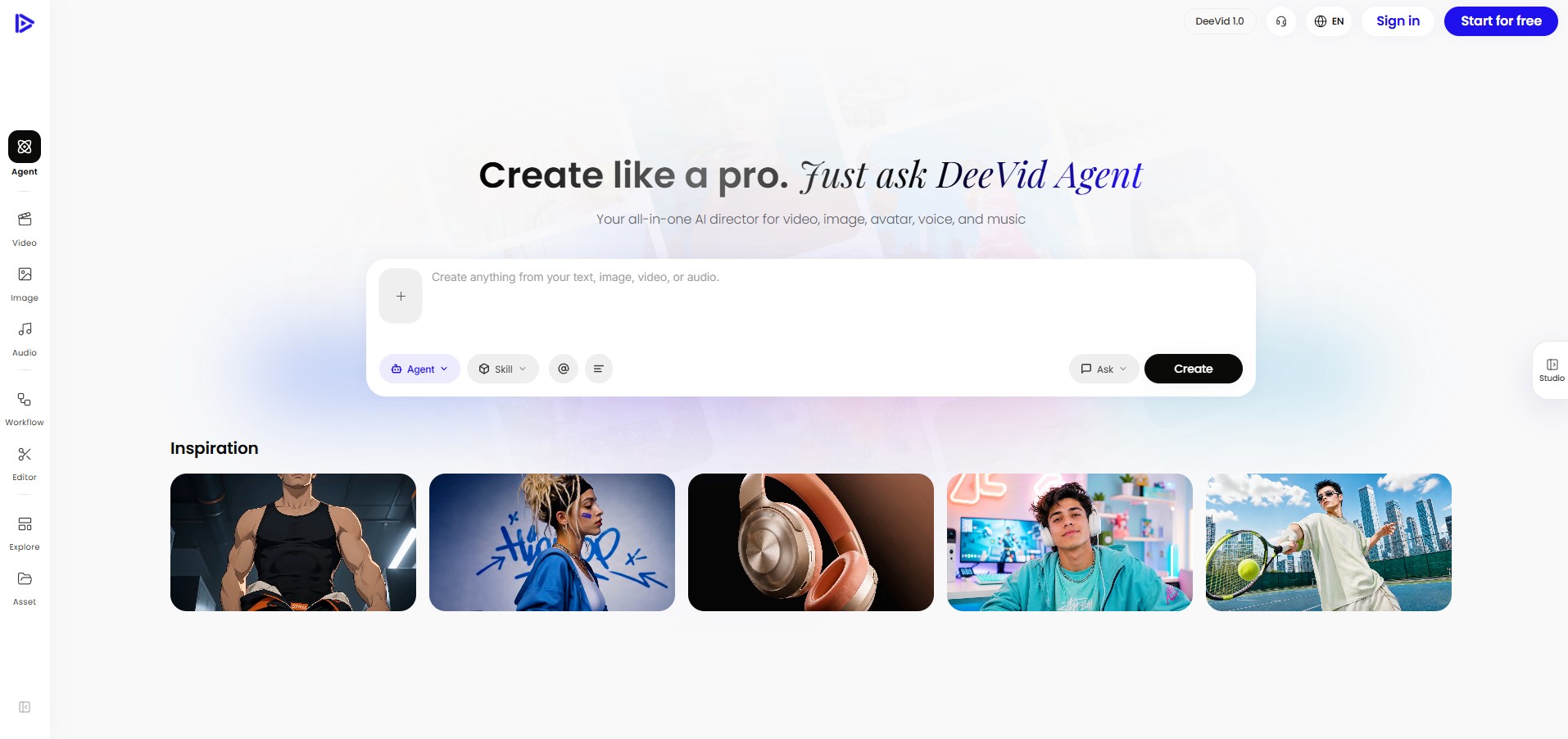
DeeVid AI Image Editor is an online photo editor built around simple prompt-based editing. Instead of learning complex layers or manual retouching tools, users can upload an image, describe what they want to change, and let the AI handle the edit. It is especially useful for quick background changes, object removal, portrait cleanup, image enhancement, and creative transformations.
Features:
– AI prompt editing: users can describe edits in natural language, such as removing an object, replacing a background, improving lighting, or changing the style of a photo.
– Object removal and replacement: DeeVid can erase distracting elements like people, wires, clutter, or logos, and can also add new objects that match the lighting and perspective of the original image.
– Background editing: users can remove, replace, or transform backgrounds for profile photos, product images, social media visuals, and marketing materials.
– Portrait retouching and photo enhancement: the editor can clean up headshots, improve facial details, adjust colors, and make everyday photos look more polished without manual editing skills.
– Generative fill, expand, and upscaling: DeeVid supports creative AI edits such as extending the canvas, filling missing areas, improving image resolution, and transforming images into new visual styles.
Best for: DeeVid AI Image Editor is a good choice for users who want to edit photos quickly online without installing heavy desktop software. It is especially suitable for content creators, marketers, ecommerce sellers, bloggers, and everyday users who need clean visuals for social media, product pages, profile pictures, ads, or presentations. It is not a traditional professional editor like Photoshop, but for fast AI-powered fixes and creative image edits, it offers a very accessible workflow.
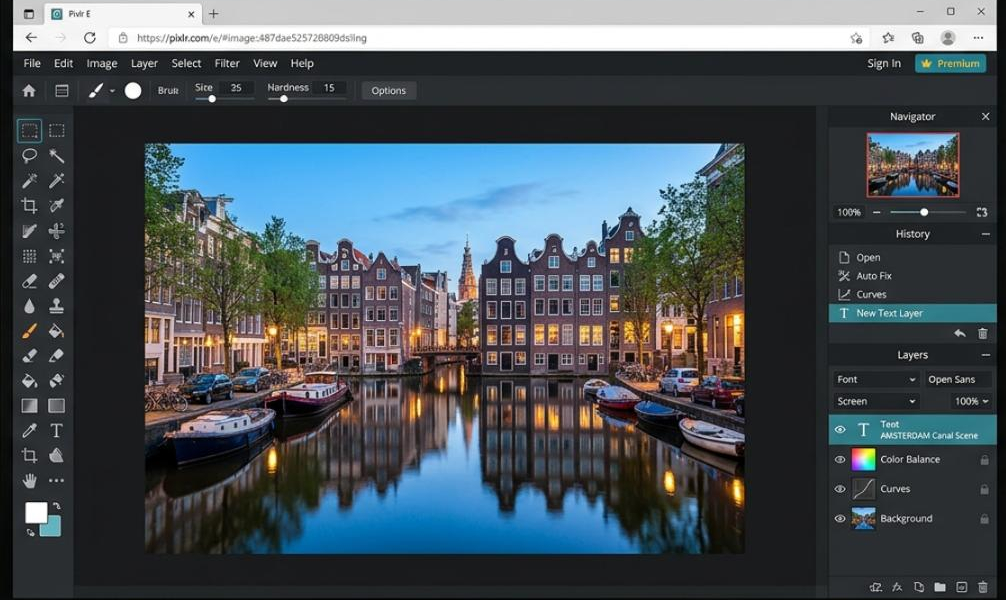
Pixlr is a cloud-based photo editor that runs directly in your browser, combining powerful tools with a simple and accessible interface. It allows you to quickly touch up photos, create collages, or design images without installing any software, making it convenient for users who need to edit something right here and now.
Features:
– Works in a browser and on mobile devices: Pixlr runs online, supports working with local files and images via links, and has mobile versions – no need to install anything on your computer.
– Easy start with AI features: automatic enhancement, background removal, quick filters, and presets allow you to quickly tidy up your photos without having to navigate complex settings.
– Layer and mask support: Pixlr remains quite flexible – it has layers, masks, and basic retouching tools, so the user can gradually move from simple to more complex.
– Availability: There’s a free version with a basic set of features, which is sufficient for most everyday use; paid plans add more advanced features and fewer limitations.
Best for: Pixlr is a great choice for users who need to quickly edit photos without installing heavy software (for social media, blogging, studying, or working in a browser). It’s convenient for beginners who value simplicity and accessibility, as well as for those who work on multiple devices and aren’t tied to a single computer.
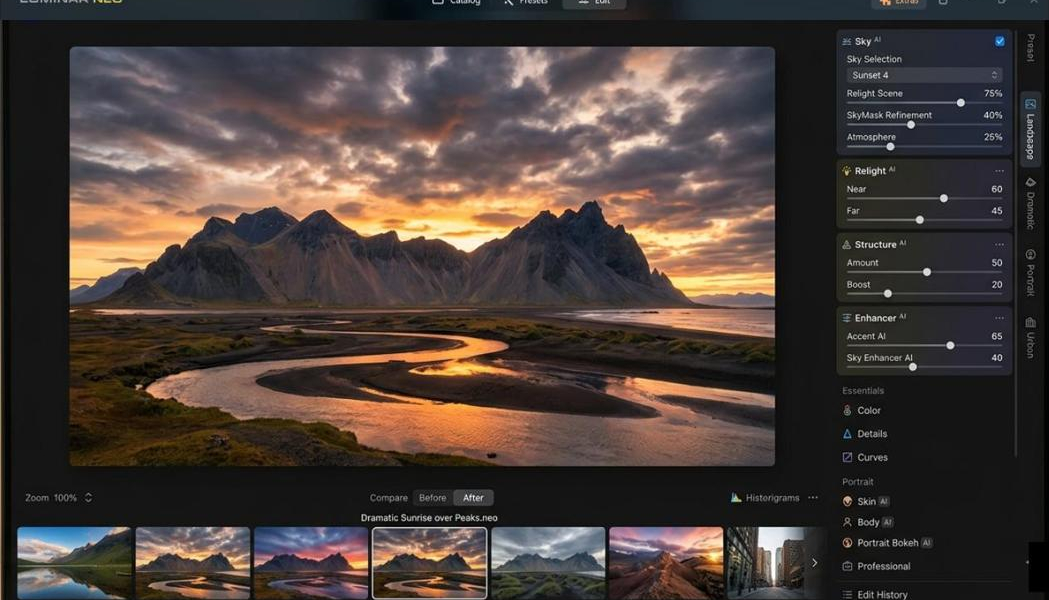
Luminar Neo is a modern photo editor with a strong emphasis on AI tools and photo enhancements in just a few clicks, while maintaining a relatively simple and visually intuitive interface. Reviewers often recommend it to beginners as a more accessible alternative to professional solutions like Lightroom and Photoshop.
Features:
– User-friendly interface and presets: Luminar Neo offers ready-made templates and style collections, and also suggests suitable presets, allowing a novice user to quickly achieve impressive results. Extremely convenient for creating Instagram Stories or visuals for a blog.
– A fully non-destructive workflow: all edits are performed non-destructively, so your original files remain safe, and you can return to any step – reducing the fear of ruining a photo for beginners.
– Powerful AI modules: automatic sky replacement, portrait enhancement, light and contrast control, and object removal – complex operations are accomplished in a couple of clicks with easy-to-understand sliders.
– Growth potential: as the user gains experience, they can move away from presets to manual adjustment of each instrument, making Neo a convenient stepping stone between simple editors and professional ones.
Best for: Luminar Neo is best suited for users who have already tried basic editors and want beautiful, cinematic photos powered by AI, but without the need for complex professional interfaces. It’s a good option for landscape, portrait, and creative photography enthusiasts willing to invest a little time in learning the program for more expressive results.
Below is a technical comparison of the tools reviewed to help you match their capabilities to your workflow requirements.
| Program | Target audience and purpose | Storage type and architecture | Key tips for organizing | Complexity for the home user |
| Tonfotos | Home and family photo archives on PCs, disks, and NAS; sorting through old folders and family history. | Local folders, external drives, NAS; indexes the existing structure, a single archive without a “closed” media library. | Search and delete duplicates, transfer to the main archive, timeline, faces, events, automatic transfer from a phone via TonfotosSync. | Low: Targeted at the non-professional user and family scenarios. |
| Lenso.ai | Users who want to find similar images, verify image sources, or monitor where photos appear online. Useful for photographers, designers, marketers, and content creators. | Web-based AI reverse image search tool. | Reverse image search, duplicate detection, source tracking, AI-powered search by people, places, and similar visuals. | Low: simple upload-and-search workflow with an intuitive interface. |
| Excire Foto | Owners of large home archives and photo enthusiasts who value AI search and quick selection of series. | A local library on your PC; functions as a standalone organizer and can complement other editors. | Auto-keywords, search by content, duplicates and similar photos, AI-culling, facial recognition. | Average: understandable for everyday use, but some features are aimed at more sophisticated users. |
| Mylio Photos | Families and users with multiple devices who value a shared family library and privacy. | Multi-device support: PCs, phones, tablets, external drives; peer-to-peer and Mylio Drive synchronization; storage space control. | A unified library across all devices, private family sharing, smart search by people/places/dates, and a flexible storage policy. | Average: powerful functionality, but requires understanding how to connect devices and set up a family library. |
| Program | Target audience and purpose | Format and platform | Key editing tips | Complexity for the home user |
| Movavi Photo Editor | Beginners and everyday users: family photos, vacations, social media; “quickly make it beautiful.” | Desktop (Windows, macOS), standalone photo editor. | Intuitive interface, AI enhancement, background and object removal, old photo restoration, portrait retouching, filters, and text. | Low: Specially designed for untrained users. |
| DeeVid AI Image Editor |
Creators, marketers, ecommerce sellers, and everyday users who need fast AI-powered photo edits online. | Online AI image editor in the browser. | Prompt-based editing, background removal, object erase/add, portrait retouching, generative fill/expand, upscaling, and image style transformation. | Low: natural-language editing makes it easy for beginners, while AI tools cover many common creative tasks. |
| Pixlr | Users who need to quickly edit a photo or create a simple image directly in the browser (study, work, social media). | Online editor in the browser + mobile versions. | Basic edits, filters, AI background removal, layers and masks, ready-made templates and collages. | Low-Medium: Starts off easy, but layers/masks may require a little adaptation. |
| Luminar Neo | Hobbyists who want vibrant, “cinematic” photos using AI are willing to delve a little deeper, but don’t want Photoshop-level results. | Desktop editor (Windows, macOS), can work as a plugin. | AI sky replacement, portrait enhancement, non-destructive workflow, rich presets, and manual adjustments for growth. | Average: The interface is user-friendly, but there are many features, so it will take a bit of a learning curve. |
In 2026, the best software isn’t the one with the most features, but the one that effectively saves you time. The development of neural networks has blurred the line between complex technical processes and pure creativity, but it has also imposed new demands on data storage discipline.
Start with implementing “digital hygiene.” Once you’ve tidied up your archives with Tonfotos or Excire Foto, you’ll see how much more enjoyable and productive your work will be in Luminar Neo or Movavi Photo Editor.
Remember:
An organized process ensures that no great shots get lost in the archives, and that your best work will delight viewers, whether in a family album or a professional portfolio. Once your photos are perfectly selected and edited, you can use them to create a stunning slideshow to tell your story even more vividly.
Try Movavi’s video editing tools to expand your visual arsenal and bring your photos to life with dynamic editing.
The best strategy is to use a manager that supports indexing external resources, such as Tonfotos or Excire Foto. In 2026, you won’t need to physically transfer files. The software will create a preview database and allow you to add tags. First, index them, remove duplicates using AI tools, and only then begin creative editing.
This is a privacy issue. If you don’t want your data used to train cloud models, choose tools with Local AI, such as Tonfotos. They analyze faces and objects directly on your computer without sending data to external servers.
If your goal is quick content for marketing or social media, a Photoshop subscription may be overkill. In 2026, Luminar Neo offers lifetime licenses with powerful AI, and Pixlr covers 90% of design tasks directly in the browser. Invest in Adobe only if you need deep integration with other Creative Cloud products.
AI is an assistant, not a replacement. It handles routine tasks like background replacement or color correction using a reference image perfectly. However, the final mood and artistic style remain human-defined. Using tools like Luminar Neo simply reduces processing time from hours to minutes.